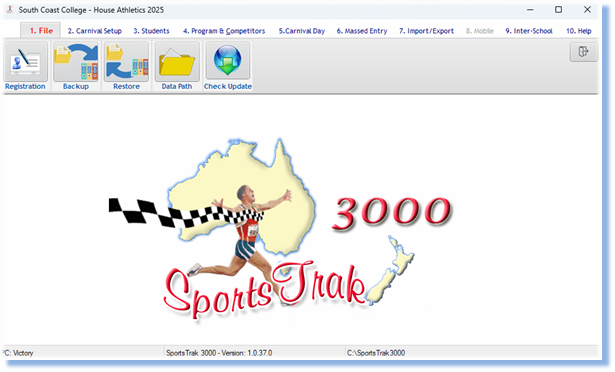
Total Revision of Layout for easier use
While ST 2200 had a lot of features they could be hard to find especially when the software was only used once or twice a year. So I have made an effort to make the layout more systematic.
Nearly all tasks are found as buttons on the tool bars. The toolbars are numbered 1 to 10, left to right. When working on a carnival you will tend to go to Menus 2, 3, 4, 5 in that sequence.
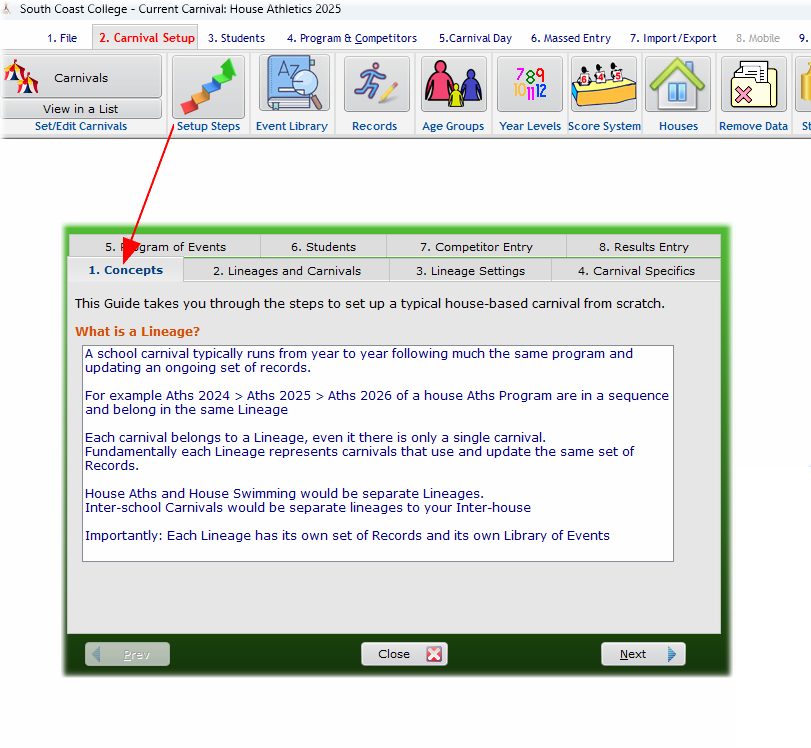
While you can work directly from the toolbars, a regular carnival can easily be managed using the Setup Steps window. Its tabs 1 to 8 give a bit of a description of what to do and takes you to the correct windows.
64 Bit application
SportsTrak now runs as a 64 bit application, (ST 2200 was 32 bit) giving you faster performance, greater stability, and the ability to handle larger events with ease. This upgrade allows SportsTrak to use more of your computer’s power, ensuring smoother operation during peak workloads and long term compatibility with the latest Windows systems.
Lineages
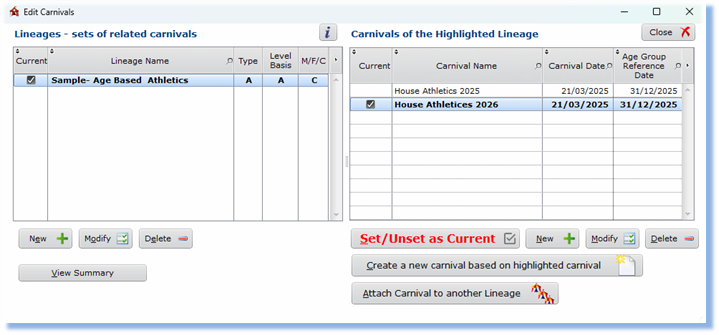
School Carnivals typically repeat from year to year requiring Records Broken to carry forward. The program and its settings usually do not change much. ST 3000 accommodates this by grouping carnivals into Lineages. So you might have a Lineage named Inter-House Swim and another Inter-House Athletics. Each of these Lineages will have at least one carnival, but adding a new one as required.
Carnival Data in a single location
Earlier SportsTraks used a different folder for the data relating to each Carnival. This means the carnivals are totally distinct and unrelated to each other. It also means data folders can get lost, meaning your carnival gets lost. SportsTrak 3000 keeps all data together in the program folder (Seen as C:\SportsTrak3000 in the top screenshot). All your carnivals are in one location. You just select the carnival you want ot work on as the Current Carnival.
Event Numbering
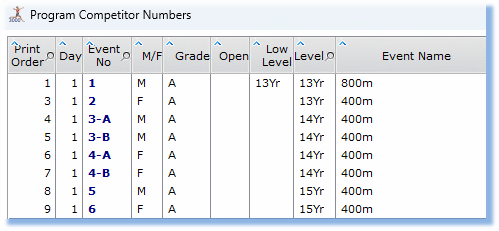
Events can have event numbers such as 3-A, 3-B, 3-C and have a specific Print Order, not actually related to the event number. (Of course for many carnivals the event number will be the same as the print order)
Use an App for Results or Competitor entry
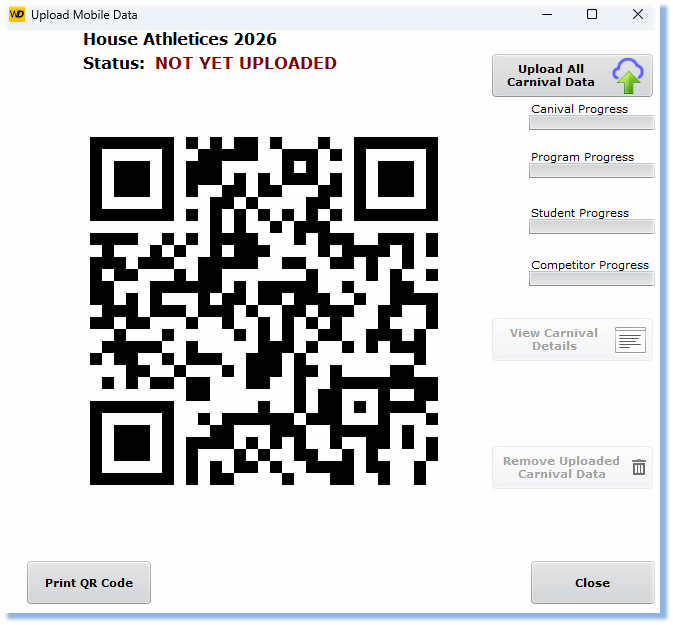
You may upload this carnival to our on-line storage. With the iOS or Android app, you scan this unique QR code. This allows the app to download the program to your iPad to enter results when you are not at the main SportsTrak computer. Later you upload the results and the SportsTrak machine can see and download them.
(Please note, as of January 2026 this feature is not operational until the App is made available)
Registration
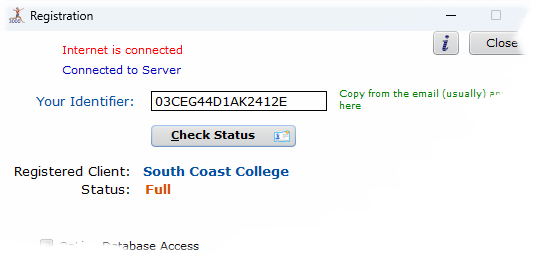
ST 2200 and earlier required users to save a registration file into the SportsTrak folder. This had a range of inconveniences. Now you receive a 16 character code such as 03CEG44D1AK2412E.
When internet connected, the registration window connects with our server, and using that code, identifies the school and its program status (Trial, Full etc). If on Trial, you may Check Status any time to see if the status has changed to Full when a payment hjad been made.
Omissions from this version
We have not included any support for Meet Manager.
While ST 2000 had the ability to import and export Meet Manager data, it was tedious, error prone, and required a competent Meet Manager user at the other end. In the end I did not have the energy to support this feature so omitted it.
We have not included User-Defined Age groups.
While useful to some people, it was little used, and when used prone to error. For example users might add ovelapping age ranges in their definitions. Caused hassles for no big benefit, so omitted.