SportsTrak 3000 mobile
Enter competitors from anywhere, and results on the field
The SportsTrak 3000 software runs InterHouse, InterSchool, Zone Athletics, Swimming Carnivals or Cross Country Events. This companion app allows results entry and competitor selections from mobile devices in the field during the sports carnival that can be downloaded and processed on the results entry computer.
It works offline. Once a carnival is downloaded, the whole day's entry runs with no connectivity at all — only the download at the start and the upload at the end need a network. Officials at the far end of an oval keep working regardless of reception.
The app is free on the App Store and Google Play. It works alongside a SportsTrak 3000 licence with current online access, and does not replace the Windows program, which still does the setup, the processing and the reporting.
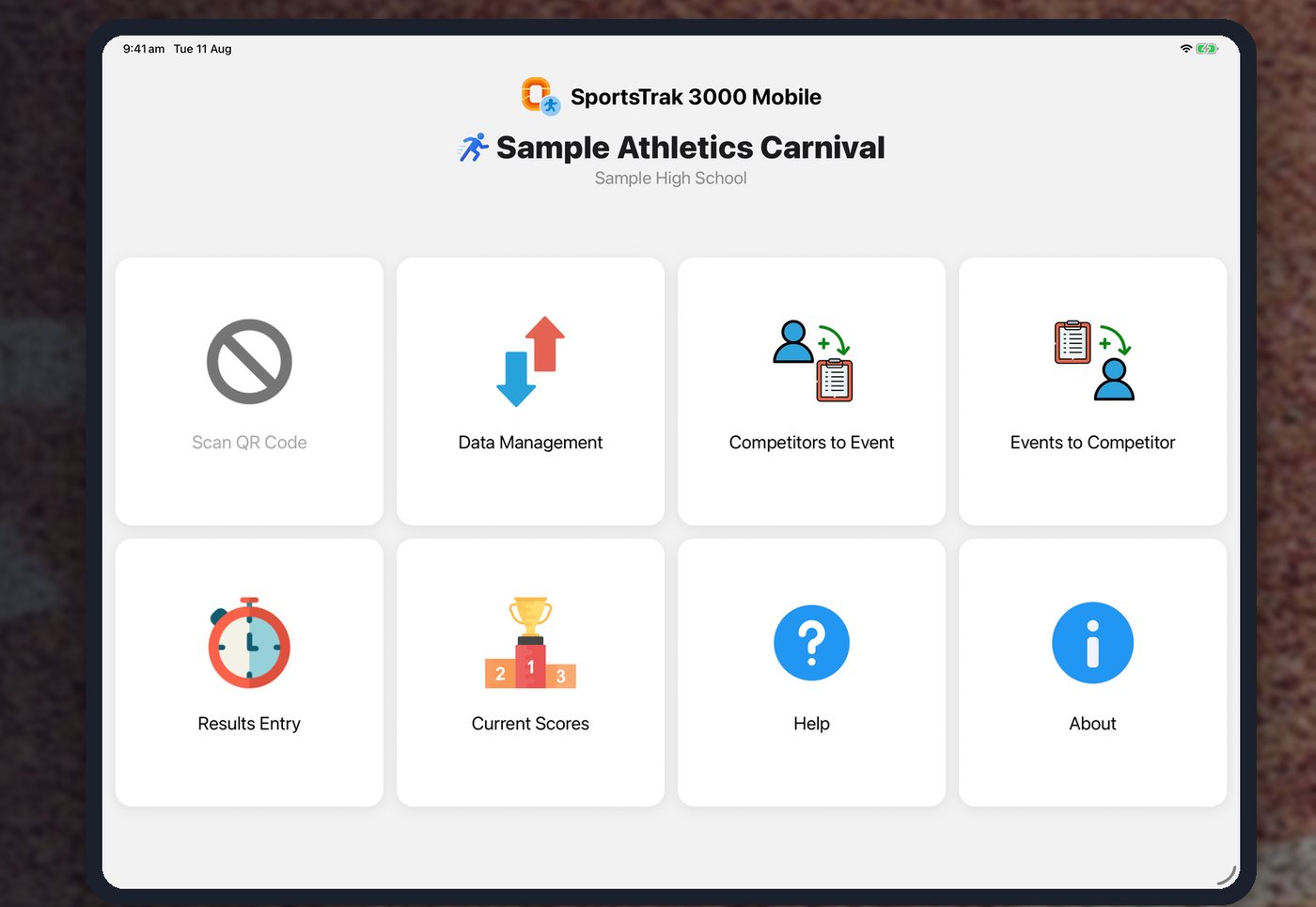
Connecting to a carnival
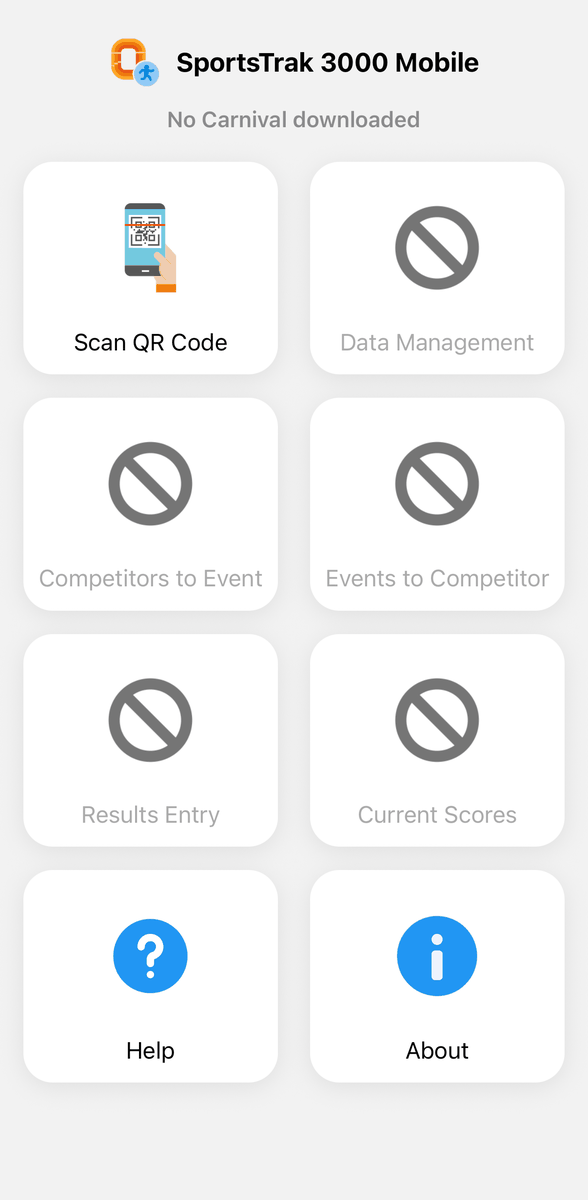
A device is paired with one carnival by scanning a QR code that SportsTrak 3000 generates on the PC when the carnival is set up. There are no accounts to create and nothing to type in on the day — scan, check the school and carnival name shown, and tap Yes.
Running two carnivals at once? A school-level QR code lists that school's carnivals and lets the user pick. Either code can also be typed in by hand if a printed QR code is not to hand.
Accepting takes you straight to Data Management and starts the download automatically. A Demo Carnival is built in for training, so staff can learn the app before the day without touching real data.
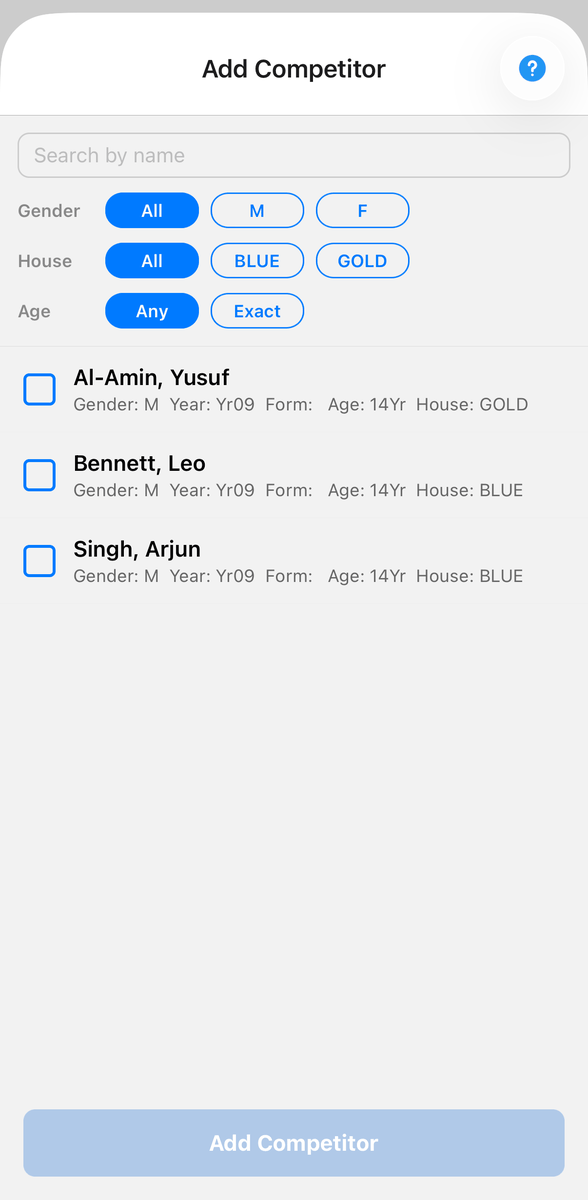
Managing competitors
Competitors can be entered from either direction, whichever suits the person doing it.
Competitors to Event lists the carnival's events with a running count of who is entered in each, so gaps are obvious at a glance. Adding a competitor searches only students eligible for that event, and the list narrows further by name, gender and house.
Events to Competitor works from the student instead: tap a student to see every event they are eligible for, with their current entries already ticked, and save the lot in one go. Removing a competitor from an event keeps any results already recorded for them.
Entering results
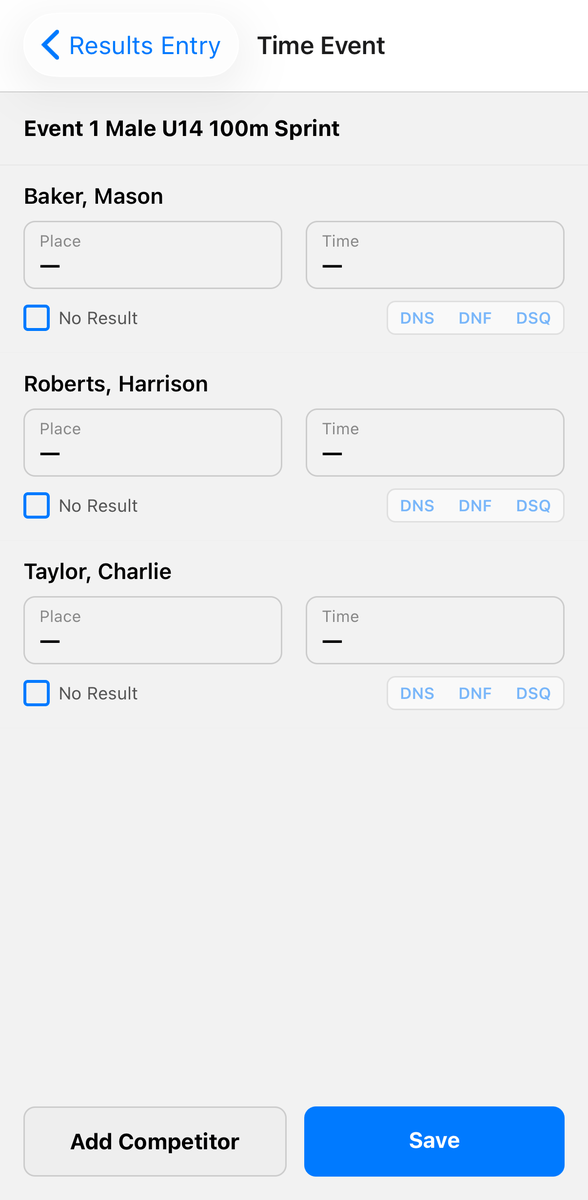
Results Entry lists the events with the number of competitors and results in each, and a green tick against the ones that are finished. Each kind of event opens the screen built for it:
- Timed events — a place and time for each competitor
- Distance events such as long jump, shot put and discus — up to three attempts each, then Commit Results to work out the placings
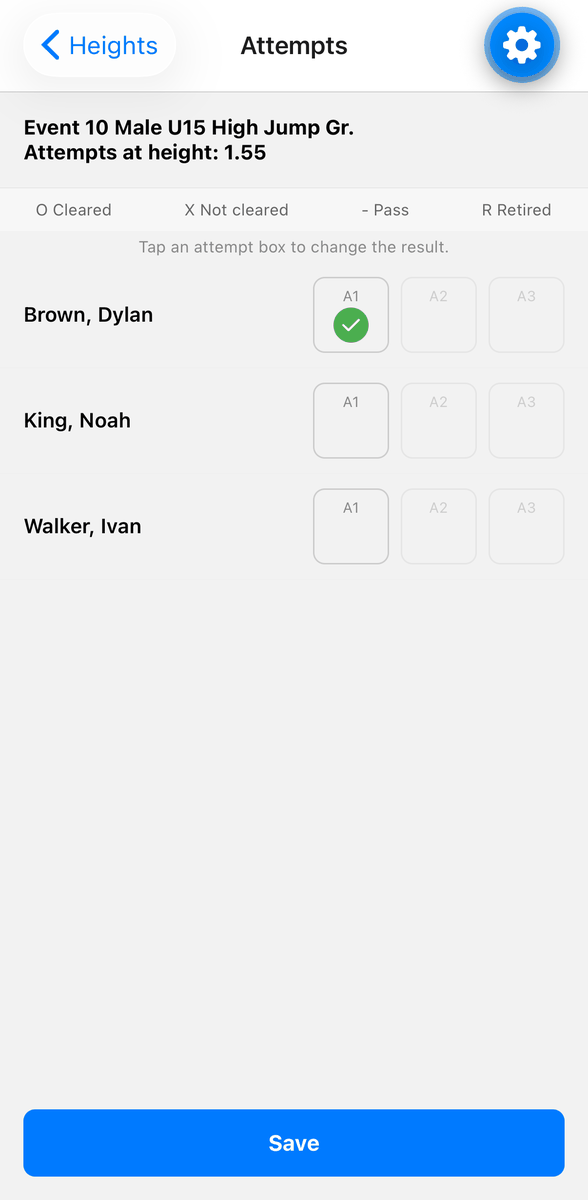
- High jump and pole vault — every attempt at every height recorded as cleared, not cleared, passed or retired
- Points events such as Dress Up — a points total per competitor or team, with places worked out automatically, highest first, and equal points sharing a place
Non-starters handled properly
A competitor can be marked DNS, DNF or DSQ on any event. They are recorded as having taken no part rather than given a placing, and are left out of the placings entirely — so a disqualified athlete cannot take a place off anybody, and the competitors who did compete are still placed 1st, 2nd and 3rd with no gaps.
The result still goes back to the PC, where SportsTrak 3000 records it as a non-result rather than a finishing position.
Scores as the day unfolds
Current Scores shows each house or team's running total, split into male and female scores. They are calculated by SportsTrak 3000 on the PC as results are processed, and fetched fresh every time the screen is opened, so what is on the phone is never a stale copy.
Sending results back
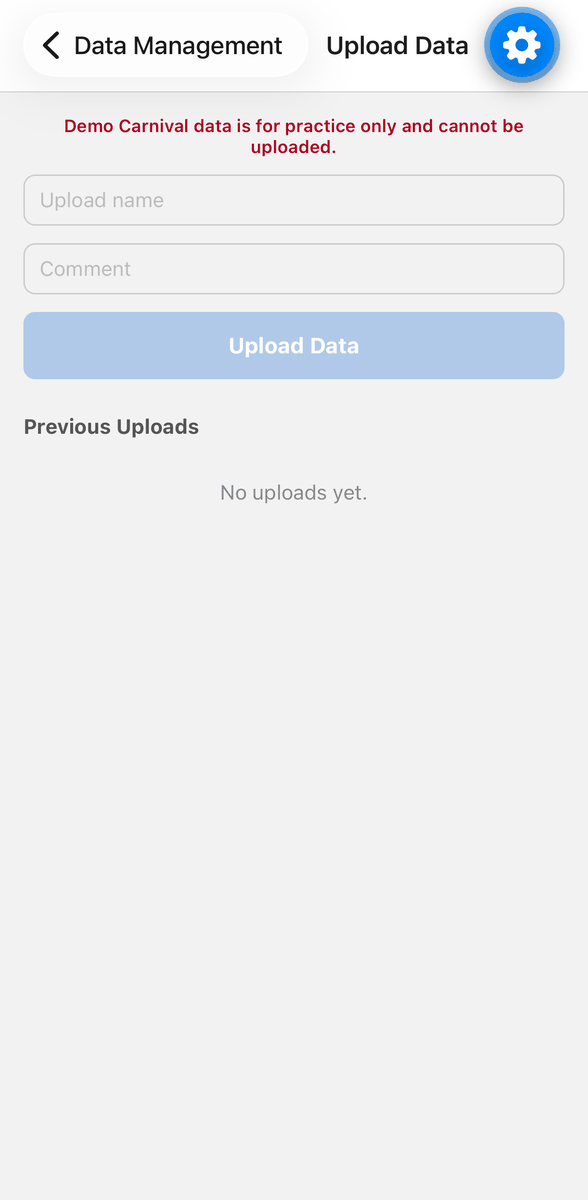
Uploads are per event, and repeatable. Events not yet sent are ticked ready to go and anything already uploaded is tagged and left unticked, so by default only new work is sent — but re-sending an event whose results have changed is expected and supported. Every upload is named and listed, so there is a record of what went back and when.
Competitor entries upload the same way, separately from results, for when selections were made on a device rather than on the PC. SportsTrak 3000 controls which of the two a carnival is accepting, so results cannot arrive while selections are still being made.
Student details stay private
Student names, dates of birth and gender, and the school and carnival names, are encrypted where they are stored and stay encrypted in transit. Only the app on the device and SportsTrak 3000 on the school's PC ever read them.
What you need
The app is free. What it needs is a SportsTrak 3000 licence whose online access is current — mobile app usage and cloud backups are the online features, so a school whose first 12 months have run out renews online access to carry on using it.
- SportsTrak 3000 on a Windows PC, to set up the carnival and process results
- Current online access on that licence
- iPhone or iPad running iOS 16.4 or later, or an Android device
- A camera on the device, to scan the carnival's QR code
- A network connection to download the carnival and upload results — everything in between works offline