Getting started with SportsTrak 3000
Whether you are trying it out, upgrading from SportsTrak 2200 or buying it outright, you end up with a registration code. You enter it in the software the first time you run it.
Trialling
- On the SportsTrak 3000 page, click Try SportsTrak 3000 free.
- Sign in, or create an account on our website if you do not have one.
- Click Start my 42-day trial. Your registration code is shown on screen and emailed to you.
- Download the SportsTrak 3000 installer with the Download SportsTrak button, or from Downloads.
The code gives full functionality for 42 days, after which the software reverts to demo mode. If your school decides to keep it, send us a purchase order: the same code becomes a full licence, so there is nothing to re-enter.
Next, see First registration below.
Upgrading from SportsTrak 2200
- On the SportsTrak 3000 page, click Upgrade from SportsTrak 2200, then Add to basket and Checkout.
- Sign in, or create an account on our website if you do not have one.
- Complete the purchase with a purchase order or PayPal. Your registration code is shown on screen and emailed to you.
- Download the SportsTrak 3000 installer from Downloads.
Next, see First registration below.
Buying a full licence
- On the SportsTrak 3000 page, click Buy SportsTrak 3000, then Add to basket and Checkout.
- Sign in, or create an account on our website if you do not have one.
- Complete the purchase with a purchase order or PayPal. Your registration code is shown on screen and emailed to you.
- Download the SportsTrak 3000 installer from Downloads.
Next, see First registration below.
First registration
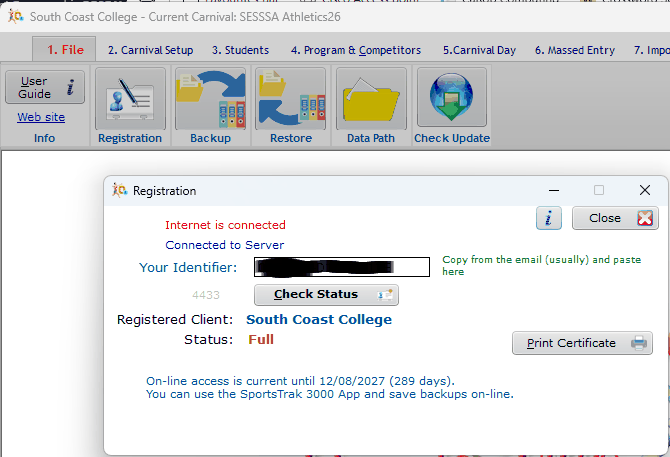
The first time you run SportsTrak 3000 it is in demo mode. Go to File → Registration, paste your registration code into Your Identifier and click Check Status. The window then shows your school as the registered client, whether the licence is a trial or full, and how long your online access runs.
If it will not connect
Registration needs internet access. Every school's network is different, and some block it. If yours does:
- On a laptop, connect to another network — your home wifi, or a hotspot from your phone — just long enough to register.
- On a desktop PC, contact us and we will email you an authority file.
Lost your code?
It is in the order confirmation email from donotreply@carobcom.com, and always in your account on this website. If neither works, contact us.