Tables and Forms
All SportsTrak data is stored in a series of data files. The data is often viewed or edited via a table.
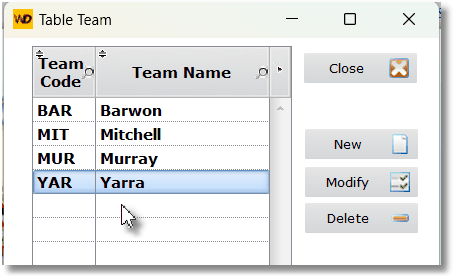 Typical table - House List |
Most tables have edit buttons where you can insert, edit or delete the highlighted record in an update form 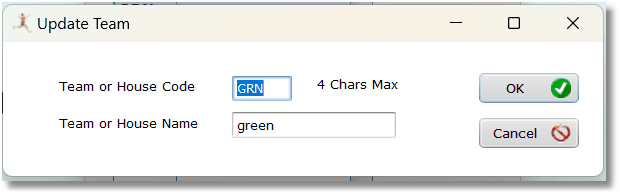 An update form used to edit data Some forms use the term Validate as opposed to OK. It means the same and is due to the fact that the development tool is French. Sometimes you may see other French expressions, say in an Error Message. |
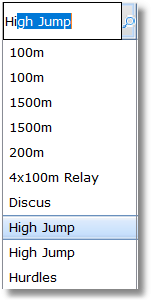
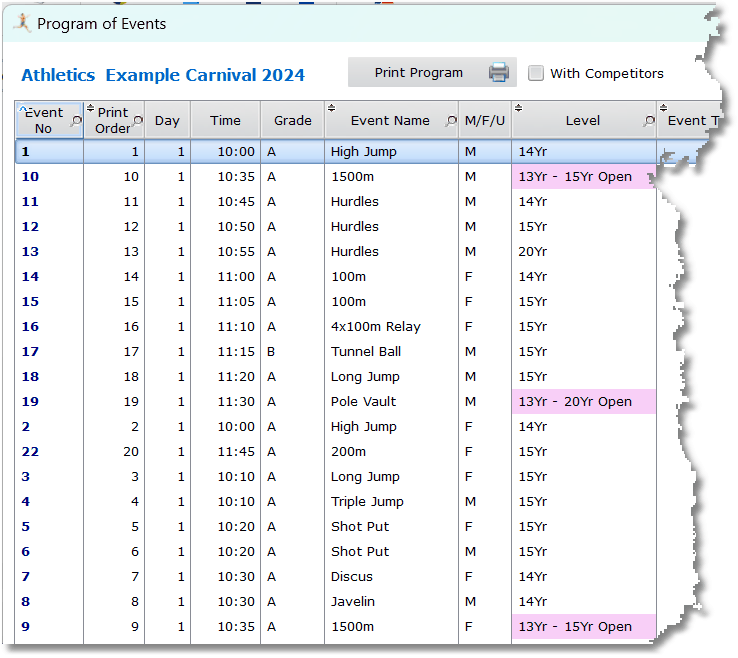
Table Headings Some table headings display a small magnifying glass. Those columns can be sorted by clicking on the heading. If you click on the magnifying glass itself you can enter something to search for in the list. The table will scroll to the nearest.
|
|
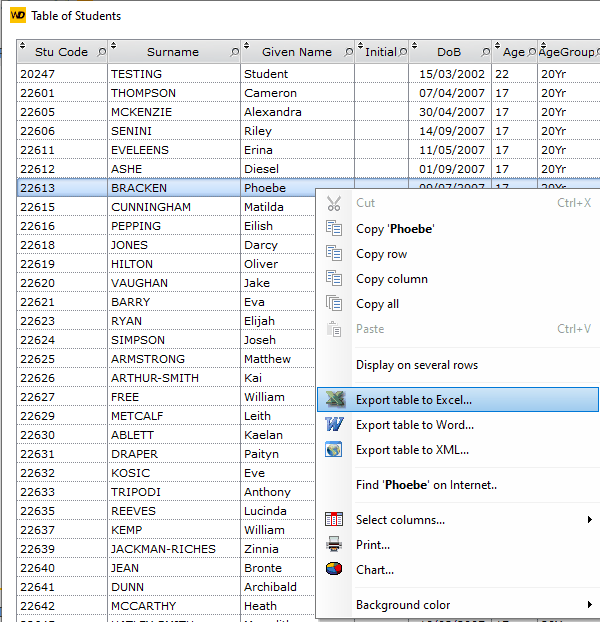
Context Menu Most tables have a Context Menu accessed by Right-Clicking on the table. This gives the ability to export to Office utilities like Excel. Copy All will allow you to paste into a spreadsheet that you might already have created. |
Context Menu on the Student Table |
Error Messages
The underlying system of SportsTrak will generate error messages sometimes. The most common of these is when data is duplicated.
For example, trying to enter two houses with the same house code.
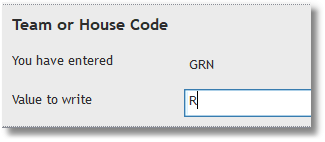
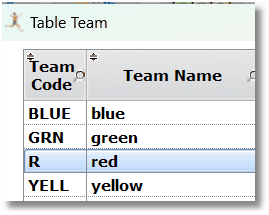
In this example, I have tried to change the house code of Red to a code already used, GRN. The underlying file system throws up the error. (It is not written by the programmers). The key word is Duplicate.
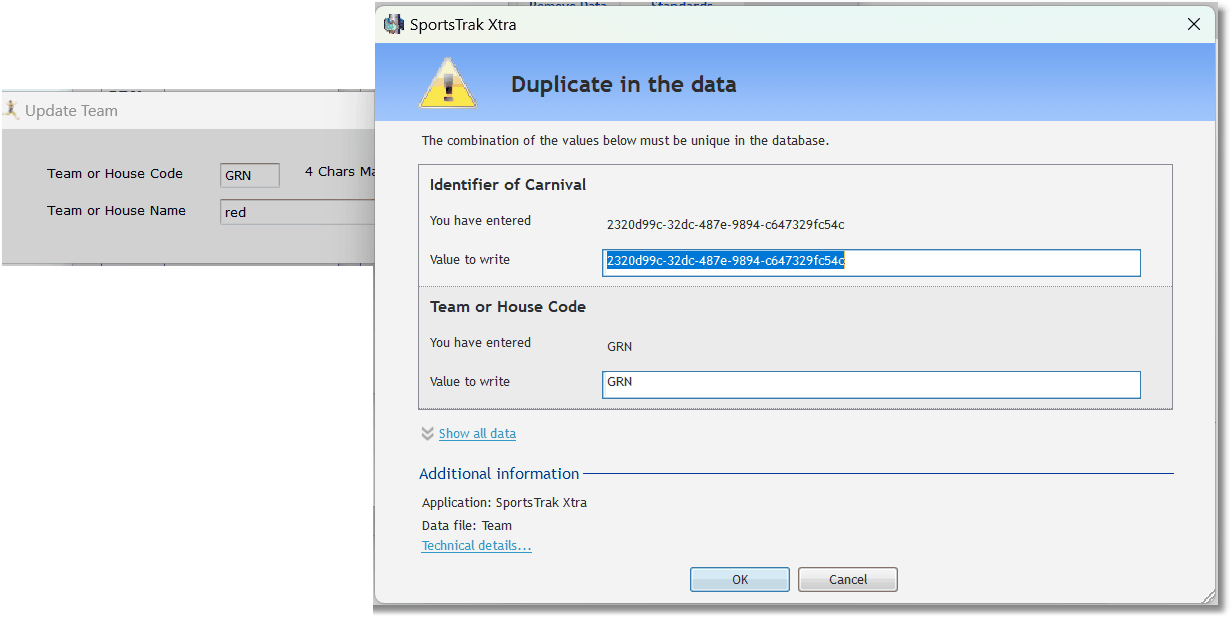
This error window allows you to modify what you are saving or you can Cancel. Never modify an Identifier, that long sequence of characters.
However, in this example, "GRN" by entering something else in Value To Write (which would be a known house code) then OK