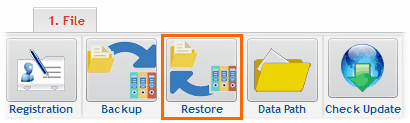
Restore from under the File Menu
The Restore Window lists the local backups in the Backups folder, and (dimmed out below) the on-line backups.
You select one file to restore. Check Online Backup to choose from the on-line saves.
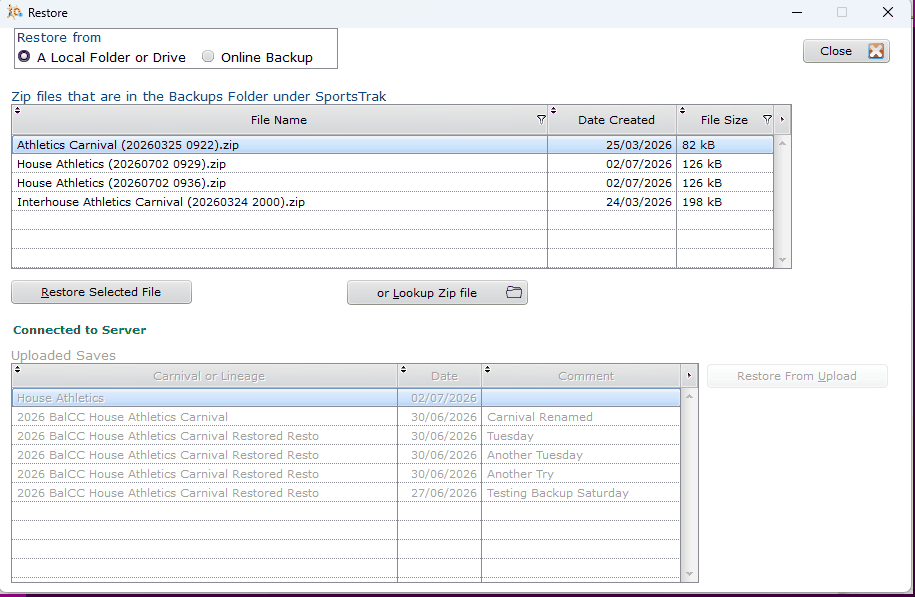
After clicking Restore Selected File or Restore Selected Upload the next window shows a basic summary of the file so that you may confirm.
When this window opens, it checks whether the carnival exists or not already and whether the Lineage exists or not. The result of that check is displayed in pink text on the window. Importantly, this tells the Restore process whether it has to create a lineage, or update the existing one, and whether it saves the carnival afresh or overwrites the existing carnival.
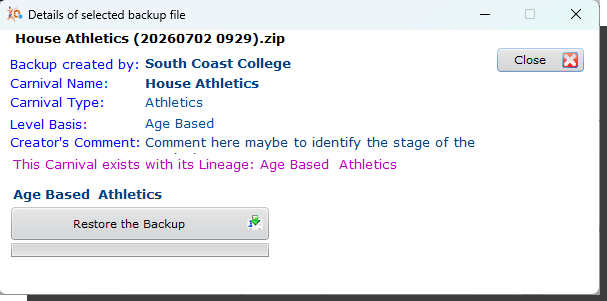
Ready to Restore
After clicking Restore the Backup, be prepared to wait a little while, especially for the on-line backup. Online backups need to be downloaded, decrypted, unzipped before merging or over-writing the exist data.
Even local backs can take a while because after unzipping the backup files, the existing carnival files may need to be deleted first.