SportsTrak has multiple tabbed menus, focusing on specific aspects of carnival preparation, operation, and related activities.
To set up a carnival, work from 1. File until the 5. Carnival Day menu.
1. File - Occasional but important tasks

1. File Menu
Registration is where you enter your Authorisation code and check the program status. Usually Trial or Full. (with internet access)
Backup and Restore works with individual Carnivals, to local backup or cloud
Data Path lets you set where the data that SportsTrak uses is located. For most purposes you do not need to change it.
Check Update requires a web connection. It will check for a later version of SportsTrak, download it, close the running SportsTrak, install the new one, and then restart.
2. Carnival Setup - Editing the background items required to set up the carnival: Event Library, Levels, Scoring, Teams (Houses)

Setting up or modifying the carnival
Carnivals is where you select, add or modify the carnival you are working on.
You can have as many carnivals as you like, for example a sequence of house athletics from year to year
Of those carnivals, one is set as Current... then all buttons on this menu (and subsequent menus) relate only to that carnival.
Setup Steps takes you through a logical process for setting up a carnival. Or you can work directly via the other buttons.
Data Check examines the current carnival for obvious deficiencies or inconsistencies such as students without a house or an age/level. This is important after any data import.
3. Students - editing, lists, and import.
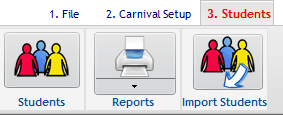
Student Menu
Manage the student list here with import and printing options
4. Program and Competitors - Edit the program, pre-enter competitors, review numbers, various print-outs
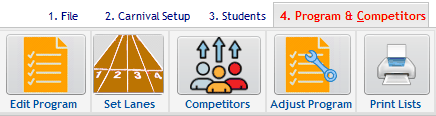
Program and related activities
Set up the program and competitors, print lists etc before the carnival
5. Carnival Day - Enter Results, plus a range of score reports
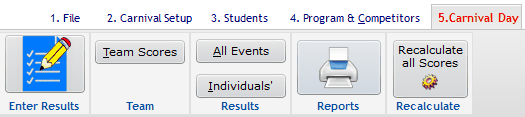
Carnival activities
For a typical Athletics or Swimming Carnival this is as far as you would need to go.
6. Massed Entry

For Trials or Cross Country
Specific to trials or events like cross-country, where Age/Level of finisher is not known at the time.
7. Import/Export Menu

Sundry import or export options
Getting data into and out of SportsTrak is important.
Program Imports and Exports
You may wish to send a copy of your carnival to someone else to work with. You may need to get competitors from another carnival.
Import and Export of the program to CSV can be useful for making overall changes to the ordering of a program.
Import and Export Excel are useful for getting a program to or from another school. Both Import and Export can be done with SportsTrak 2200 compatibility.
Results Imports and Exports
Used when multiple PCs enter results for different events for the same carnival. Those results may be exported and the imported to the main PC.
SchoolTeam CSV
If schools have to provide competitors to an inter-school program: With the same program on their SportsTraks (be it ST2200 or ST3000) they can add competitors to that program and send it as SchoolTeam in CSV format to the host organiser for import. Participating schools may have been sent the program previously using the Program export section.
SportsTrak 2200
This is a 2 or 3 step process to get SportsTrak 2200 carnivals into SportsTrak 3000 format. SportsTrak 2200 was written is a different language with different file structures to ST3000, so the data must go through an intermediary process of converting first to a text format both versions can work with. In the development of 3000, we have used this a lot to get test data and it works well.
FinishLynx
creates data files for the Finish Lynx timing system based on the current carnival, and can then import those results and times back to the current carnival. Becasue the data has to be sent and returned in specialist text files, it is included in the Import/Export section
Data Check
Importing anything from another source such as CSV file has risks. Hence use Data Check after any import.
Student Import is performed from the Student menu.
8. Mobile Menu
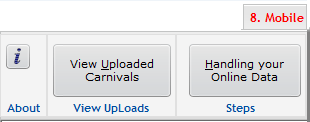
Activities related to Mobile Devices data
Upload/Download data for mobile devices using the SportsTrak App.
9. Inter-School

Sending and Receiving data between higher and lower level carnivals
If you are organising an inter-school program where other schools need to submit competitors you first send them a copy of the program.
If they have SportsTrak 3000, you can send them the Carnival Export, otherwise just the CSV of Events
If you are the lower level organiser you can import the Carnival Export file sent by the higher organiser and then work through the stepped guide to add your competitors to that program.
You then send back the JSON file of your competitors.
The inter-school organiser then imports the JSON or CSV files sent back to them.
There are import/export options on the 7. Import/Export Menu that are useful as well