Scenario:
You want to time many students over 100m and use those times to seed them as competitors in both the A and B events.
Set up the carnival first
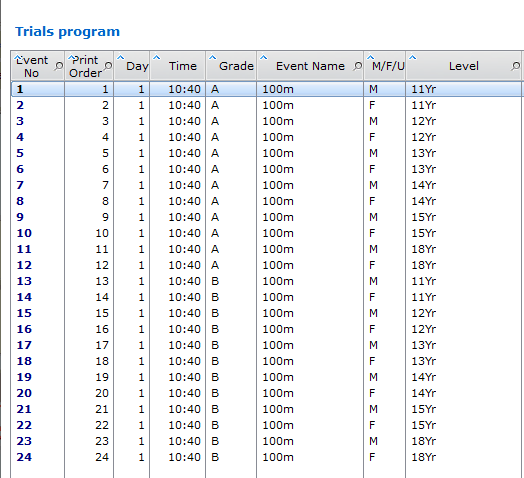
Ensure you have a carnival set up with a program of events that includes your trial events. You require a program even if you are not actually running the carnival. The event order does not matter except that if you are running A and B (or C) events then A events must precede B or B events must precede A. The priority of events must be consistent through the program. This example only has 100m events but they could also be part of a more complete program. |
Program of Trials |
Enter performances
Go to the massed results window using this toolbar button from the Massed Entry menu:
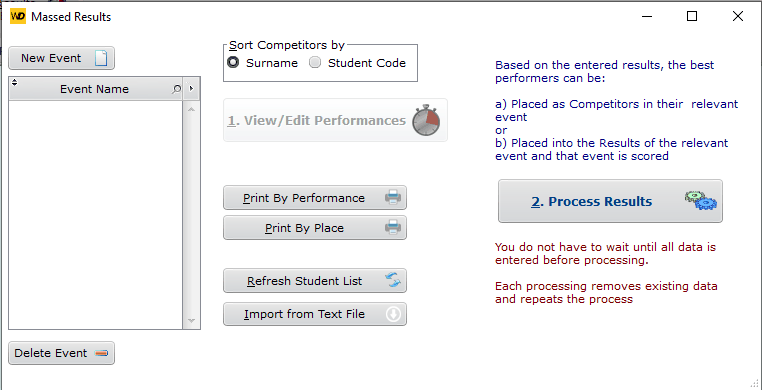
Massed Results Window before any events entered
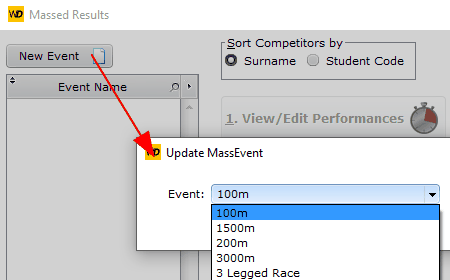
Insert 100m (and any other events that are being trialled) by clicking the Insert Event button. The look up the event you want.
Looking up the 100m |
After adding 100m |
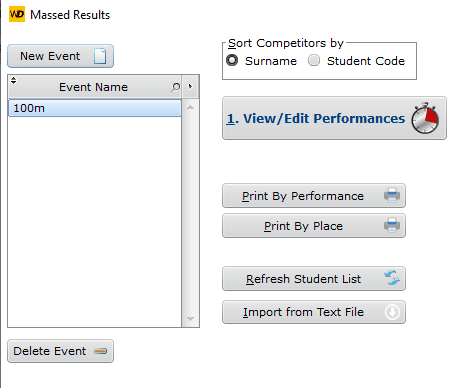
After adding the event(s) View/Edit Performances is active.
Note the prompt Sort Competitors by Surname or Student Code. Choose whether it is easier to locate students by their Code or their Surname. (I have chosen Code)
Click Enter Performances
Full student list - entering performances
|
For trials you would choose to enter Result Only at the top. Clicking Locate Student Code I can enter the first characters of the code and I am offered the matching competitor(s) Clicking on KEN05 I can edit her place directly in the table 17.5 secs is entered as 1750 then OK or <ENTER> |
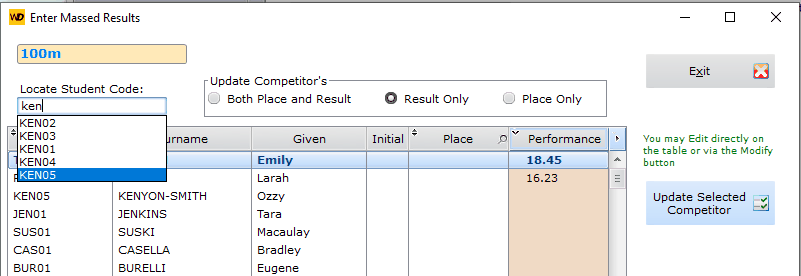
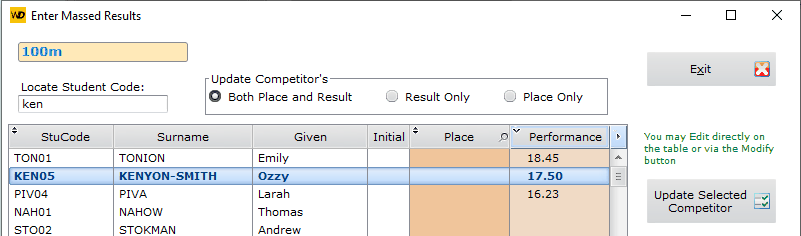
When entering performances it does not matter what order they are entered in.
The student list has the entire school in it. You can add results for different ages (or year levels) at the same time. Add all or just some of your results. You can always come back to it, even after processing. |
After entering some results, then sorting on Performance (two clicks on the heading to bring results to the top) |
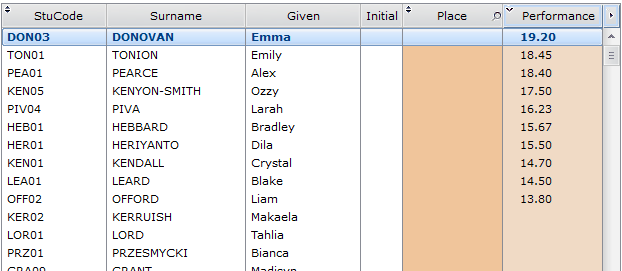
You can also use the Update Selected Competitor to call up a competitor to edit Place or Performance
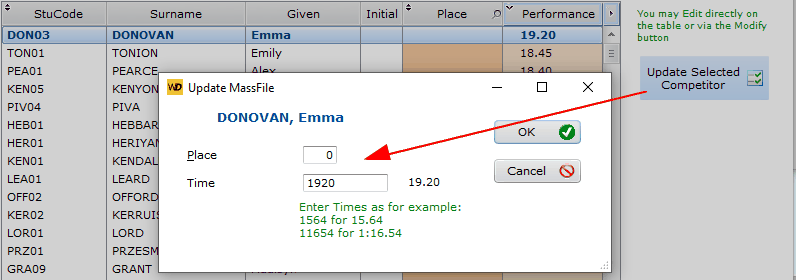
Using the Update button rather than entering on the line