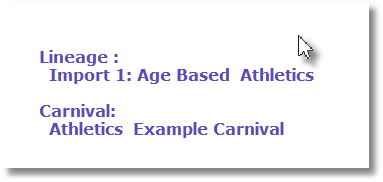
After exporting from ST2200 to JSON format, the data must be imported
From Import/Export, run Import ST2200 data |
|
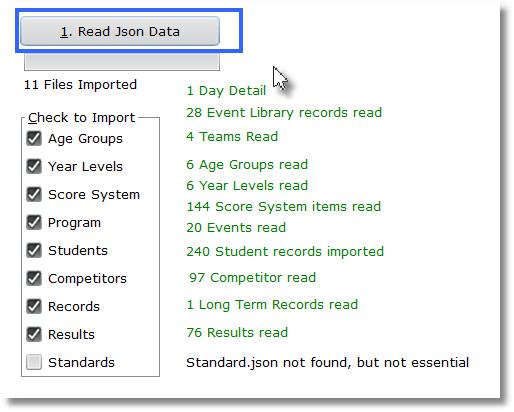
As this window opens, it checks the JSON files and displays what it has found in green text. If it does not look correct, you may have selected the wrong folder in the previous step, so go back and repeat it.
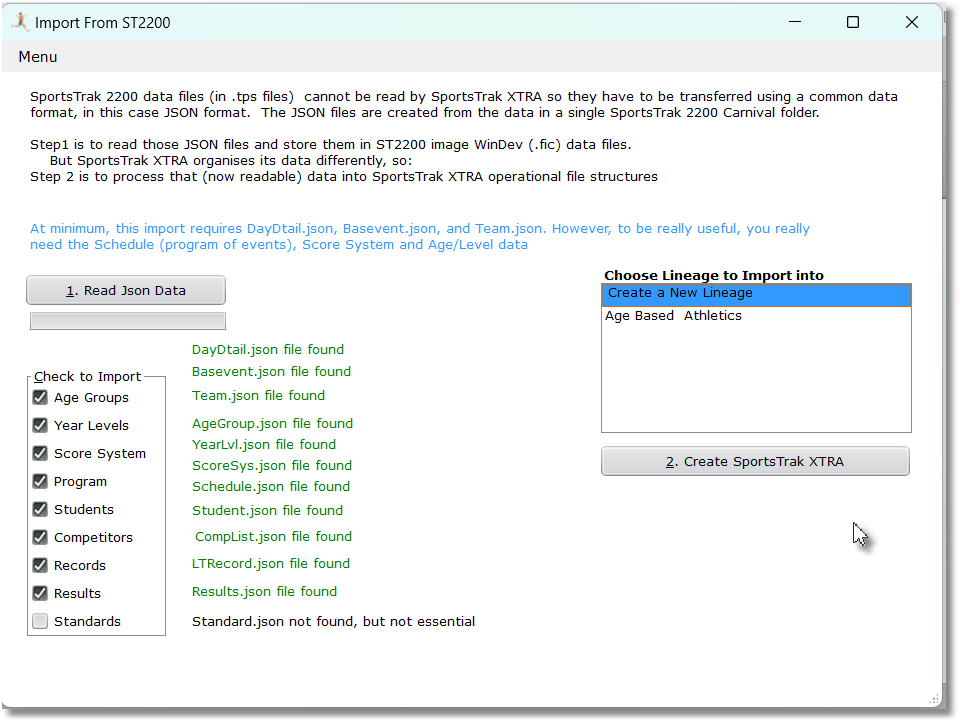
You can uncheck certain files if you do not want to import them. For example you may not want Students or Competitors, so uncheck them.
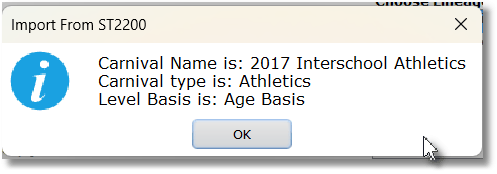
Click 1. Read JSON Data It first tells you what the carnival is about.
The green messages change to display the number of records read in each file |
|

On the right hand side, you are given the option of importing to the lineage "Age Based Athletics", or allow the import to create a new lineage.
In this example, we will leave it as it shows.
Click 2. Create SportsTrak XTRA
Selecting Create a New Lineage will use Lineage names Import 1..., Import 2... successively. These should be renamed by you under the Carnival settings. Data will import. If results exist for that carnival, the scores will be re-processed. This carnival is now set to be the Current Carnival |
|