
From the Inter-School Menu
We refer to inter-house and inter-school for convenience. Inter-house can refer to any lower carnival: Inter-school to any higher carnival that sources its competitors from the lower carnival.
The setup guide assumes:
·That you have run a local carnival and have results for it
·That you have a copy of the inter-school program
·Both carnivals set up are among this SportsTrak's carnivals
It steps you through the process of getting your best competitors into the inter-school carnival.
1.Identify the two carnivals
2.Identify your team code
3.Identify corresponding events and set the number of competitors required in each event
4.Let SportsTrak select competitors based on the results
5.Fine-tune the competitors yourself
6.Export competitors to file for the inter-school organiser
Importantly, the guide does not require both carnivals to be both Year Level or both Age Group based.
Often a lower carnival is Year Level based but the higher carnival is Age Based. This works fine as long as the students in the Year Level carnival have had their Dates of Birth imported. This means they will have an Age Group and the Guide can use it to pick competitors.
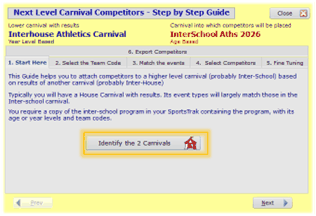 Step 1 Identify the two carnivals Use the two lower right buttons to identify the related carnivals. Higher carnival will be red, lower carnival blue. |
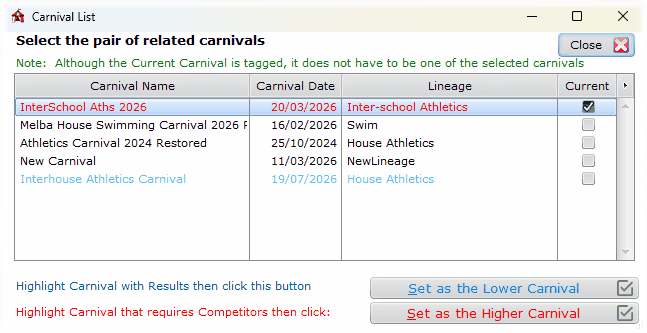 Specify the two carnivals |
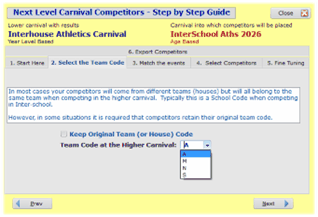 Step 2 Select the team code to be used |
The drop down list displays team codes from the inter-school carnival, so it is probably a school's code you select here. At some carnivals, competitors remain in their original team (their lower carnival team). The check box Keep Original Team (or house) Code is for this purpose. |
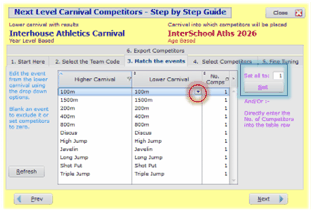 Step 3 Match events and set no of competitors |
The table shows perfectly matched event names, but that is not always the case. If the higher carnival has 90m Hurdles, but the lower carnival does not, the right hand column will be empty. But if the lower carnival had 80m hurdles, that could be selected using the red circled drop list. You would also need it if the same event has different spellings. 100m does not match 100 m so you would have to look it up Set the number of competitors using the Set button in blue, or directly enter in the table where individual events have a different number. |
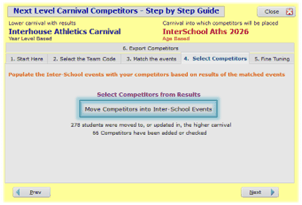 Step 4 Choose Competitors |
All lower carnival students are moved into the student data of the higher carnival. The lower level results are used to populate the competitors in the higher carnival. You may have had a student who did not compete in the lower carnival (say due to a legitimate absence) but require him/her to compete at the higher carnival. Because all students have been copied across to the higher carnival it is straightforward to edit the competitors and include them. |
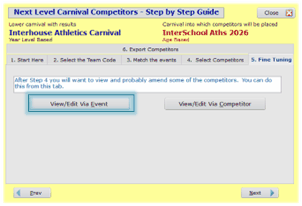 Step 5 Fine Tuning |
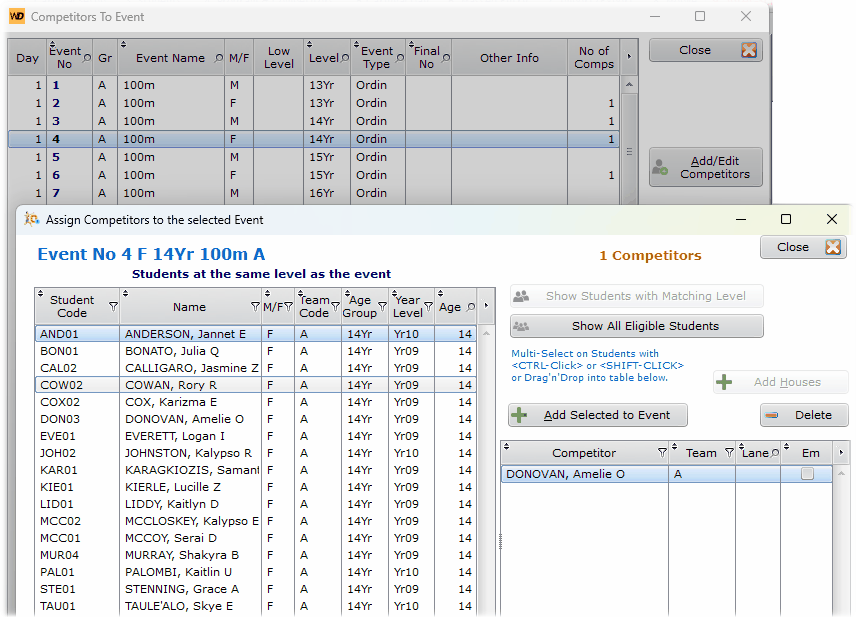 Check each event This uses the same windows as Menu 4 for editing competitors. |
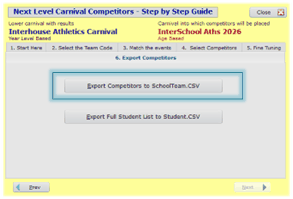 Step 6 Export the Competitors . |
Historically Export to CSV is the way to go. Send this file to the inter-school coordinator. 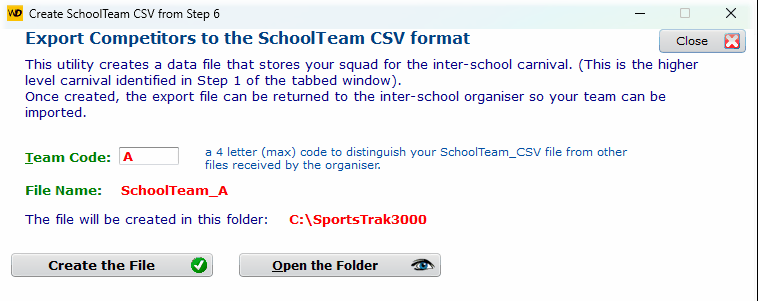 The file name includes the school code Exporting the Full Student List is desirable. It exports all students using the Team Code as specified in Step 2 above. If keeping the original team code, the export file is Student.csv. If using a replacement team code(say XXXX in Step 2), the export file is Student_XXXX.csv If repeated, the old file is kept, but the new file as a 1, 2, 3 etc at the end of the file name |