Schools have sent you their competitors in a file named SchoolTeam.CSV or similar. They may also have sent you a full CSV file of students.
I suggest that you do the full student import first because it contains official data that is correct, in particular Dates of Birth and Student Code.
Importing the SchoolTeam file looks for the kid by name, so it is best if they are already there.
If it cannot find a matching student, Import SchoolTeam creates a student code, adds the kid, and may calculate a date of birth that works, but is not necessarily correct.
If you Import Competitors first and then follow up with Student Import, you must choose Add, not Replace existing students. Add will insert missing kids and will amend student data that it thinks is incorrect.
A word on SchoolTeam.CSV file names
If the file name is SchoolTeam.csv then it has been created with events only. It may be sent to schools for them to complete so may later on have competitors in.
A name such as SchoolTeam_PORT.csv has been created by SportsTrak as a competitor listed file and the school code automatically added by SportsTrak.
If you receive a file named SchoolTeam.csv from school MGHS (with their competitors manually entered into it), immediately rename it yourself as SchoolTeam_MGHS so that it does not get confused with others.
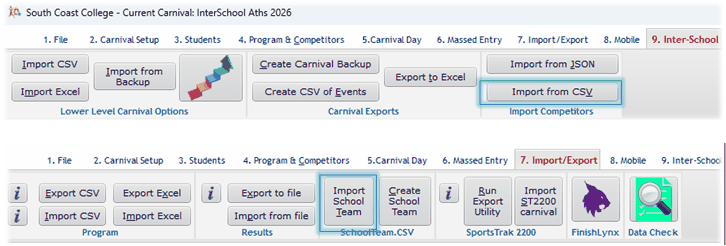
Two buttons do the same thing
The table below is initially blank. Select a schoolteam.csv file using the Look Up button to display it.
If the team codes were not correct there is an option from the Keep Existing drop down list to change it.
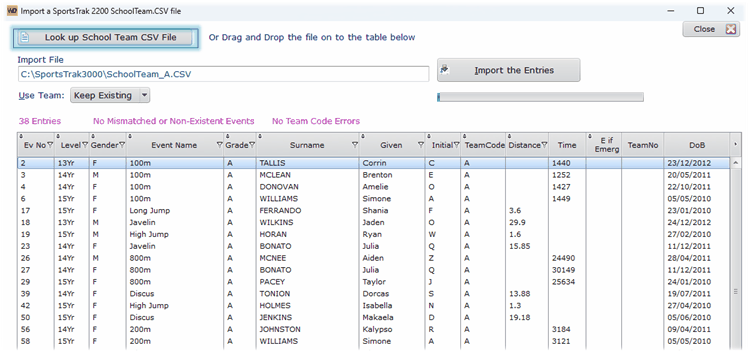
View before Adding
When satisfied Import the Entries
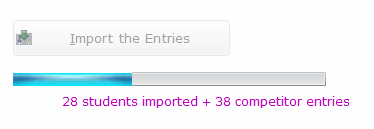
After Importing
Importing these competitors adds them into the student file. It creates a student code that may not be the official student code. If DoB is missing an arbitrary one is calculated from the age group of the event. However these do not matter, although they can change if you choose to import all students below.
Import all Students, not just competitors
If you have been sent a full student list to import from school you can import them all, but make sure you check Add to Existing Students, not Replace.
Replace first cleans out all Students, Competitors and Results so it will undo the previous good work!
The Add to Existing Students checks if any student has the same Surname, Given, and Initial. If so, it assumes the kid is already in the data and may update date of birth or student code, but will not remove them from the existing competitor list. This file is probably from the school admin data and will be accurate.
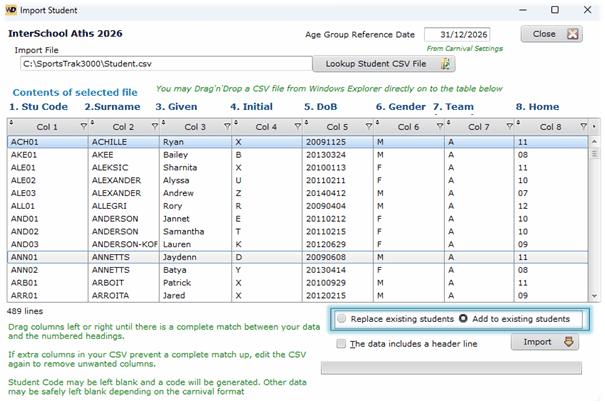
Make sure you tick Add
See here for Importing Students in this guide