After the student CSV file is prepared, select that file as shown:
(You may also Drag'n'drop the file from Windows File Explorer directly on to the table)
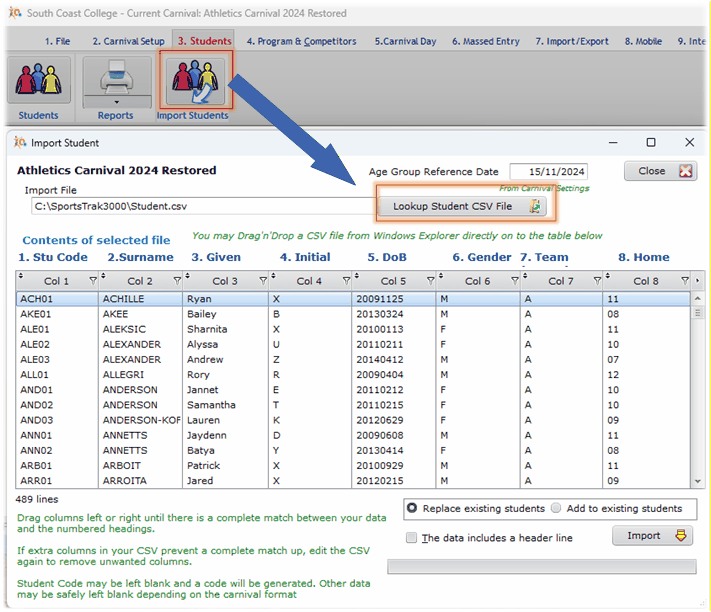
After selecting the file, or dropping it on to this table, the columns are populated in the order of the CSV file.
If the column data does not match the column headings, drag the column headings to match. If your data has a header row, tick the box shown below.
Note: Date of Birth may show as YYYYMMDD as above or DD/MM/YYYY as below. Either is fine.
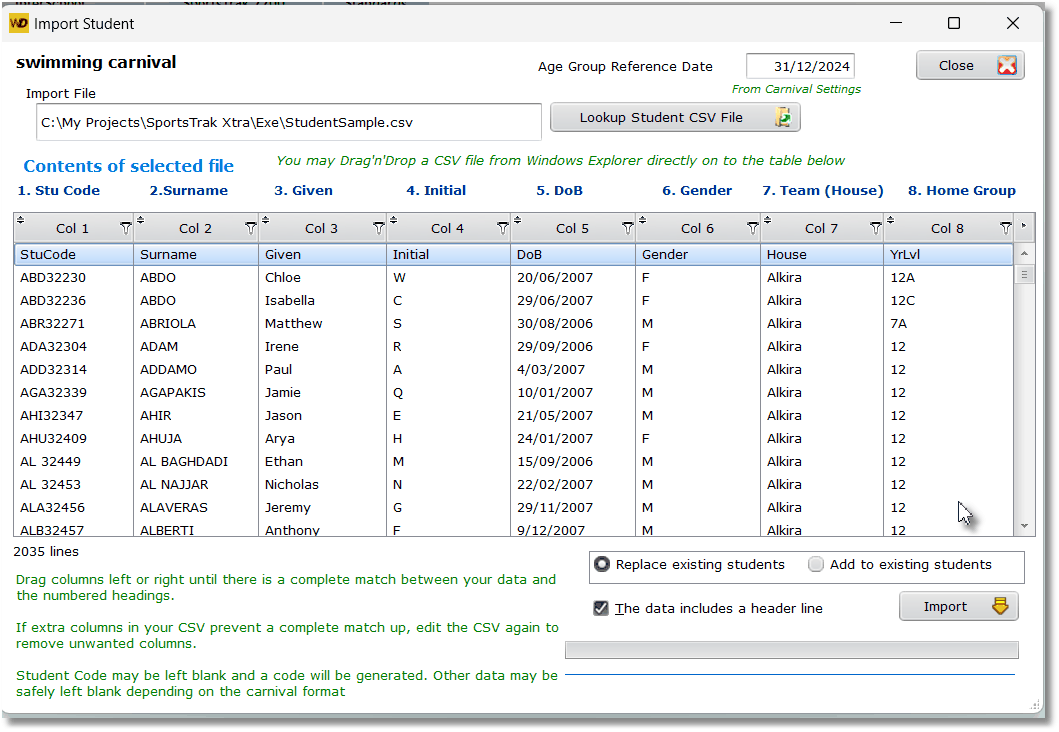
You may totally replace any existing students, or add to existing students.
Add to Existing students:
The import will check if the same student code already exists, and if so, will update the personal details based on the import data. It will not add an extra student in this case. This means that if you have Competitors or Results they will not be affected by the import of fresh students.
Replace Existing students:
If Competitors or Results exist, you are warned and can cancel the import. Otherwise any competitors and results are removed and team scores set to zero.
When satisfied, do the Import.
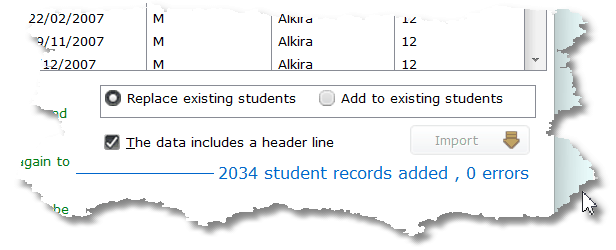
After Importing, go immediately to the Students table and scroll through it, looking for incomplete or erroneous data.