Handling your OnLine Data
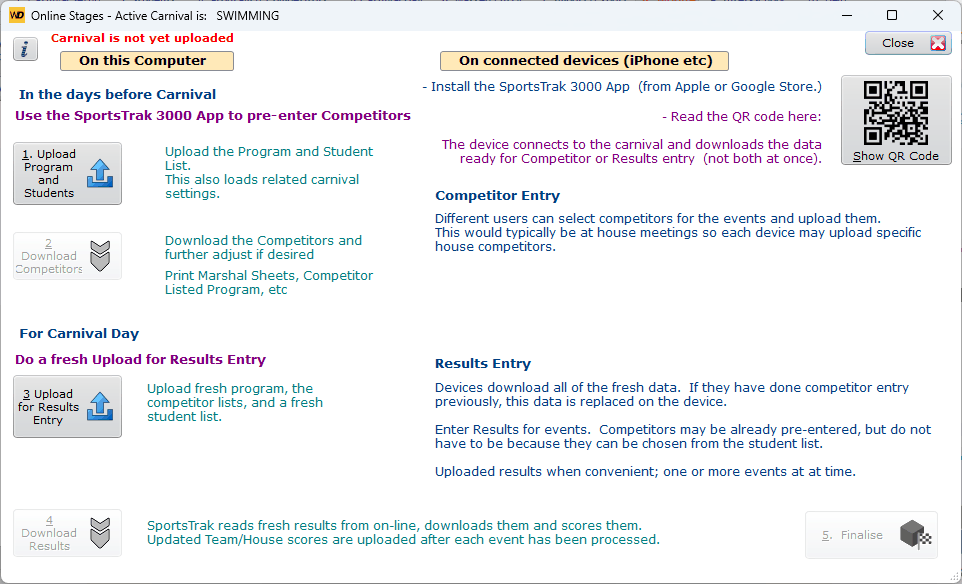
All upload and download activity is from here.
You may use the app to enter competitors into events, to enter results, or for both. Either way the carnival has to be uploaded to the server first, and you choose which stage you are uploading for.
1. Upload Program and Students sends the program, the student list and the carnival settings, so that app users can choose who competes in which events. 2. Download Competitors brings their selections back to your PC.
3. Upload for Results Entry sends a fresh copy of the program, the competitor lists and the student list, ready for results to be entered on the app. 4. Download Results brings those results back as they come in.
Only one stage is open at a time. The status line below the buttons tells you which, and the buttons switch themselves on and off to match.
The status line
The status shown at the bottom of the window tells you what stage this carnival has reached on-line, and the buttons switch themselves on and off to match. Only the actions that make sense at that stage are available.
Status |
What you can do |
Carnival is not yet uploaded |
Either upload buttons is available. Choose the stage you want to run on the app. |
Carnival has been uploaded for Competitor Entry |
App users are choosing who competes in which events. You can download those selections when they are done. |
Carnival has been uploaded for Results Entry |
App users are entering results. You can download the results as they come in. |
Carnival is Finalised. No more entries allowed |
The carnival is closed off. Nothing further is uploaded or downloaded. |
Carnival is uploaded but status not set |
Something has gone wrong with the upload. Delete the on-line carnival and upload it again. |
No Server Connection |
Nothing is available until the connection is restored. Check your internet connection and try again. |
Show QR Code
Users must scan this with the SportsTrak App's Scan QR Code button. Scanning directly with the camera will not work.
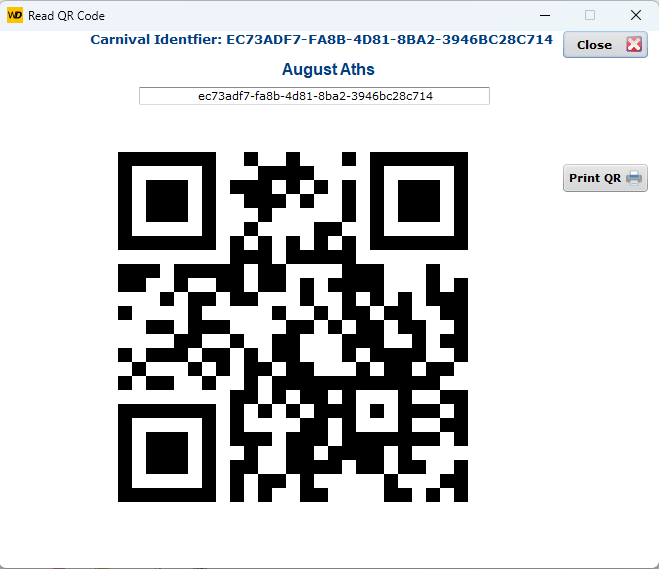
Users scan this with their app
The QR Code contains a unique, hard-to-guess Carnival Code. When an App user scans it, that code is sent over an encrypted connection to retrieve your carnival's data.
Because the code is only ever shared via the QR code you provide, and the connection itself is encrypted, only people you've given the code to can access your carnival's data.
Uploading a carnival that is already on-line
If the carnival is already on the server when you upload it again, SportsTrak asks you to confirm:
Do you want to replace all uploaded carnival data ready for results entry?
Answering Yes does exactly that. Everything held on the server for this carnival is deleted and replaced with a fresh copy from this PC - the carnival, the program of events, the students, the competitor lists and the teams.
Before you replace an on-line carnival, make sure you have downloaded everything you want to keep.
This matters most when you move from the Competitor Entry stage to the Results Entry stage. While the carnival is uploaded for Competitor Entry, app users are adding and removing competitors on their own devices and uploading those selections. Those selections live only on the server until you bring them down with Download Competitors.
If you replace the on-line carnival before downloading them, the server copy is deleted and your PC uploads its own competitor lists in its place - and any selections made in the app that you had not yet downloaded are lost. Download first, check the competitors are as you expect, and only then upload again for the next stage.
See also Downloading Competitors and SportsTrak 3000 App.
Finalising a carnival
When you have finished with a carnival on-line, click 5. Finalise. This closes the carnival off on the server: no more uploads are accepted from the app, and no more downloads can be made to your PC.
The button is available while a carnival is uploaded for either Competitor Entry or Results Entry. Once finalised, the status line reads Carnival is Finalised. No more entries allowed and every other button on the window is turned off.
Download everything you need before you finalise.
Finalising stops downloads as well as uploads, so any results still sitting on the server that you have not brought down will no longer be reachable from SportsTrak. Download the results, check them, and finalise afterwards.
Finalising cannot be undone from this window - there is no button to re-open a finalised carnival. If you do need to put it back on-line, delete it from View Online Carnivals and then upload it again for whichever stage you want. Being a deliberate act in another window, it is not something you can do by accident.
Finalising is the tidy way to finish with a carnival. It is not an archive - it closes the carnival, it does not store it for you. Your own backups remain the way to keep a carnival, as described in Back up.