This section describes the mobile app as it stood at the time of writing. The app is developed separately and continues to be refined, so its own Help screen is always the definitive guide. What follows is here so that you can see how the app fits together with SportsTrak 3000 on your PC.
What the app is for
The app lets you enter competitors and results out on the field, away from the PC. It holds a copy of one carnival at a time, downloaded from the cloud. All entry works with no connectivity at all - only the download and the upload need a network connection.
SportsTrak 3000 on your PC remains the master. The app captures entries and sends them back; it does not work out final scores or produce reports.
Download the App
From the Apple or Google store, find the app under the name SportsTrak 3000 Mobile
From the App Store
Connecting to your carnival
|
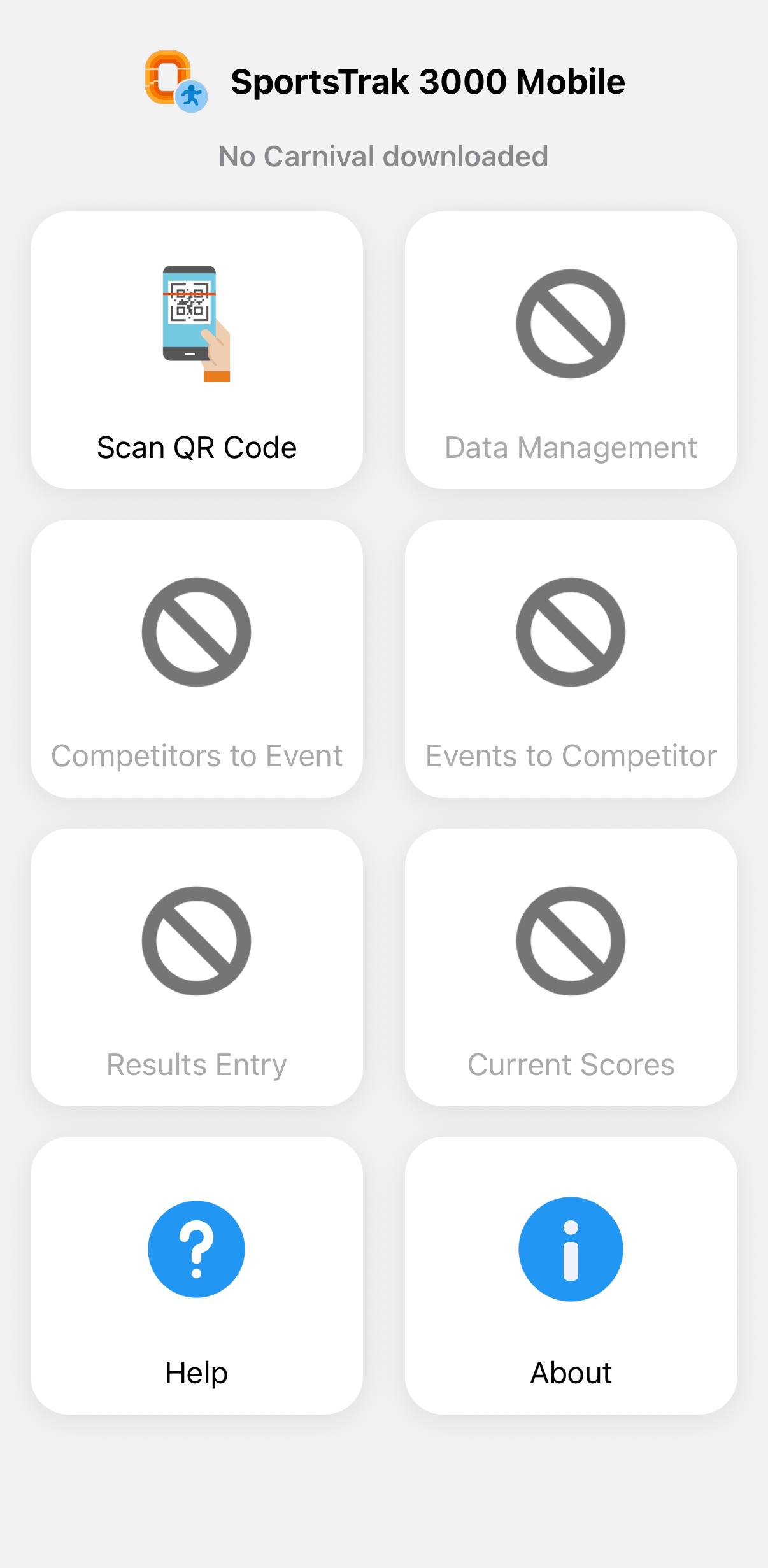
Tap Scan QR Code. Until a carnival is connected this is the only option available - everything else stays greyed out. The QR code is produced by SportsTrak 3000 on the PC. See Setting and getting on-line data. No QR code handy? Tap Enter ID manually to type the Carnival ID in instead, or Use Demo Carnival to practise with sample data. Results entered against the Demo Carnival cannot be uploaded. A message shows the School name, Carnival name and date. Tap Yes to accept. |
|
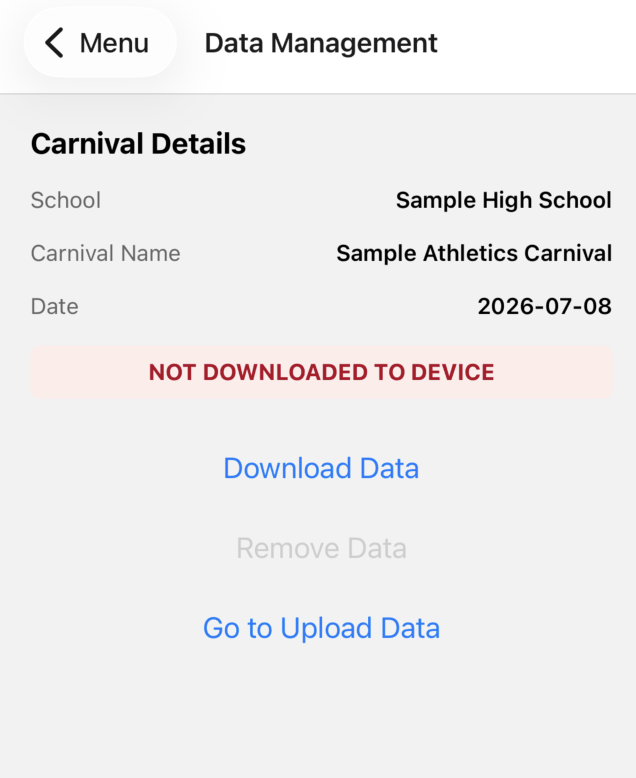
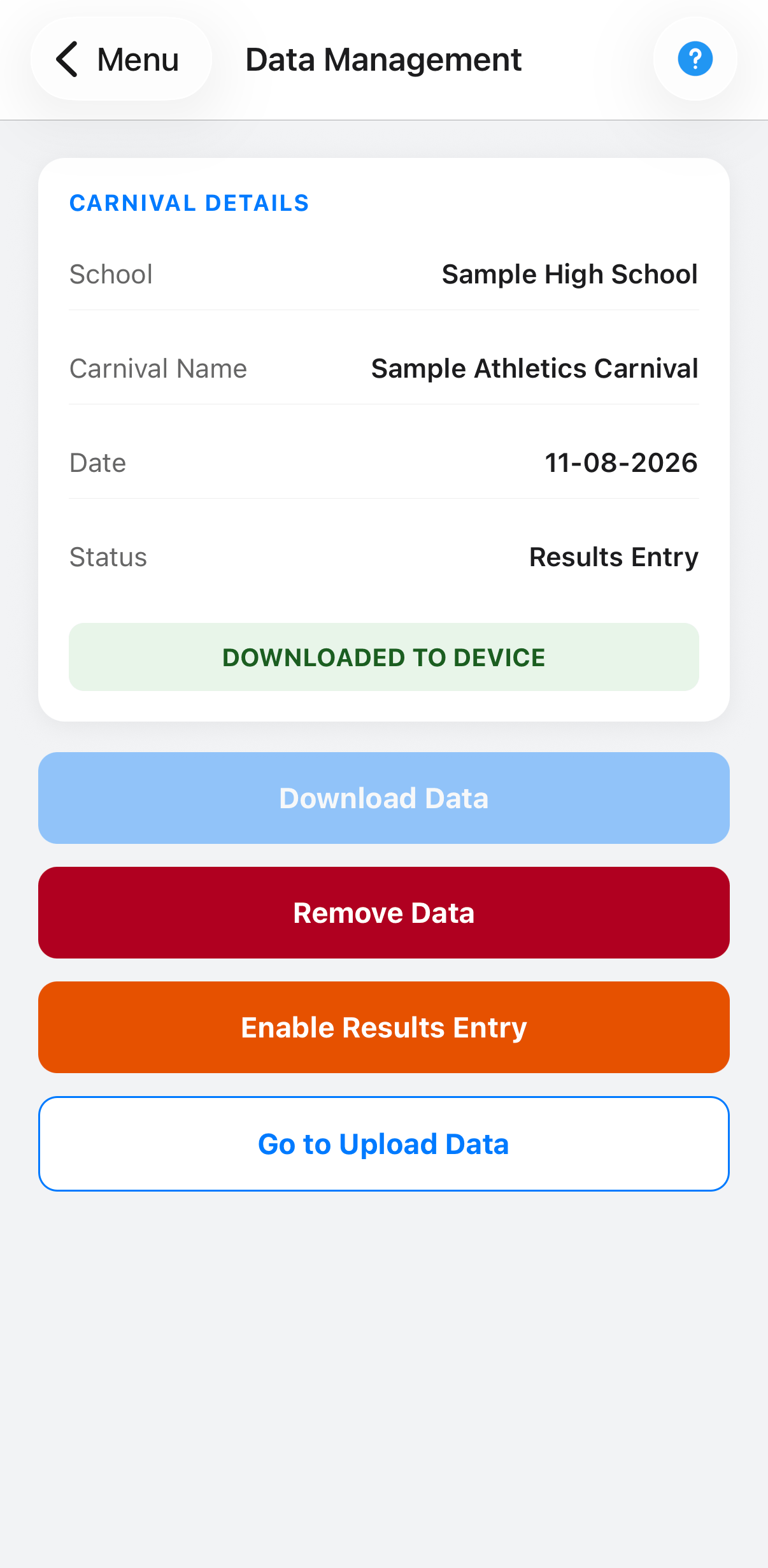
Once accepted, the app goes straight to Data Management and downloads the carnival automatically - you do not have to start it yourself. A message appears when it has finished. To download again later, tap Data Management then Download Data. |
|
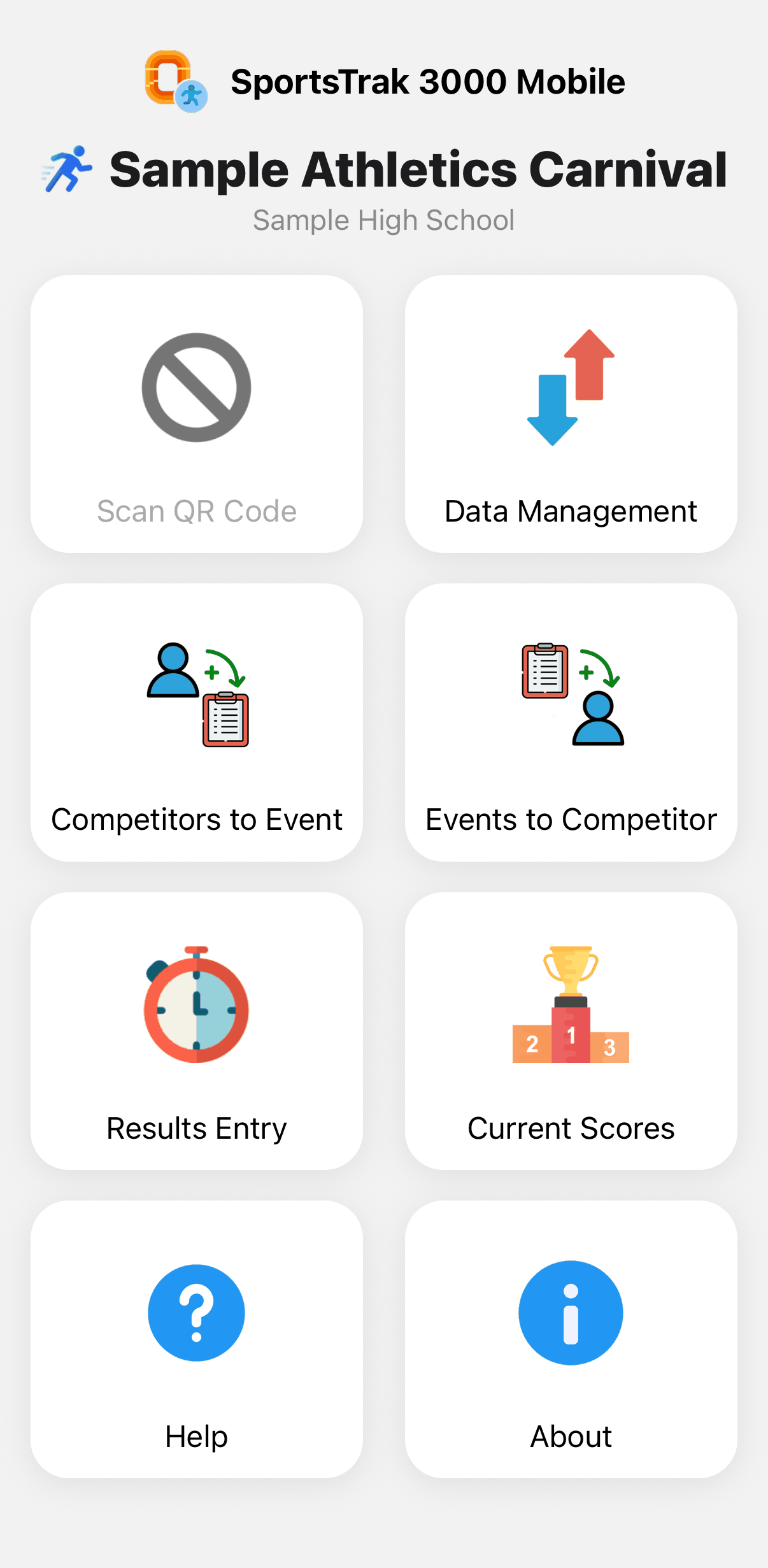
With the data downloaded, the rest of the menu becomes active: Competitors to Event, Events to Competitor, Results Entry and Current Scores. You can only work with one carnival at a time. |
Managing competitors
This is available while the carnival is uploaded for Competitor Entry.
|
Competitors to Event lists the events for this carnival. The #COMP column shows how many competitors are already entered in each event - blank means it is still empty. |
|
Tap an event to see the competitors already in it. Tap any column heading to sort by that column, and again to reverse it. The lists start in the carnival's own running order, so once you have sorted, a Clear sort link appears to put them back. Tap the cross next to a competitor to remove them from the event. Any results already recorded for that event are kept, not deleted. |
|
Add Competitor searches for eligible students. Only students matching the event's gender and level are offered. |
|
You can narrow the list further - search by name, or use the Gender and House filter buttons. Tap All on either row to clear that filter again. The Age filter defaults to Any, which includes younger age groups that are also eligible for the event. Tap Exact to show only students in the event's own age group. |
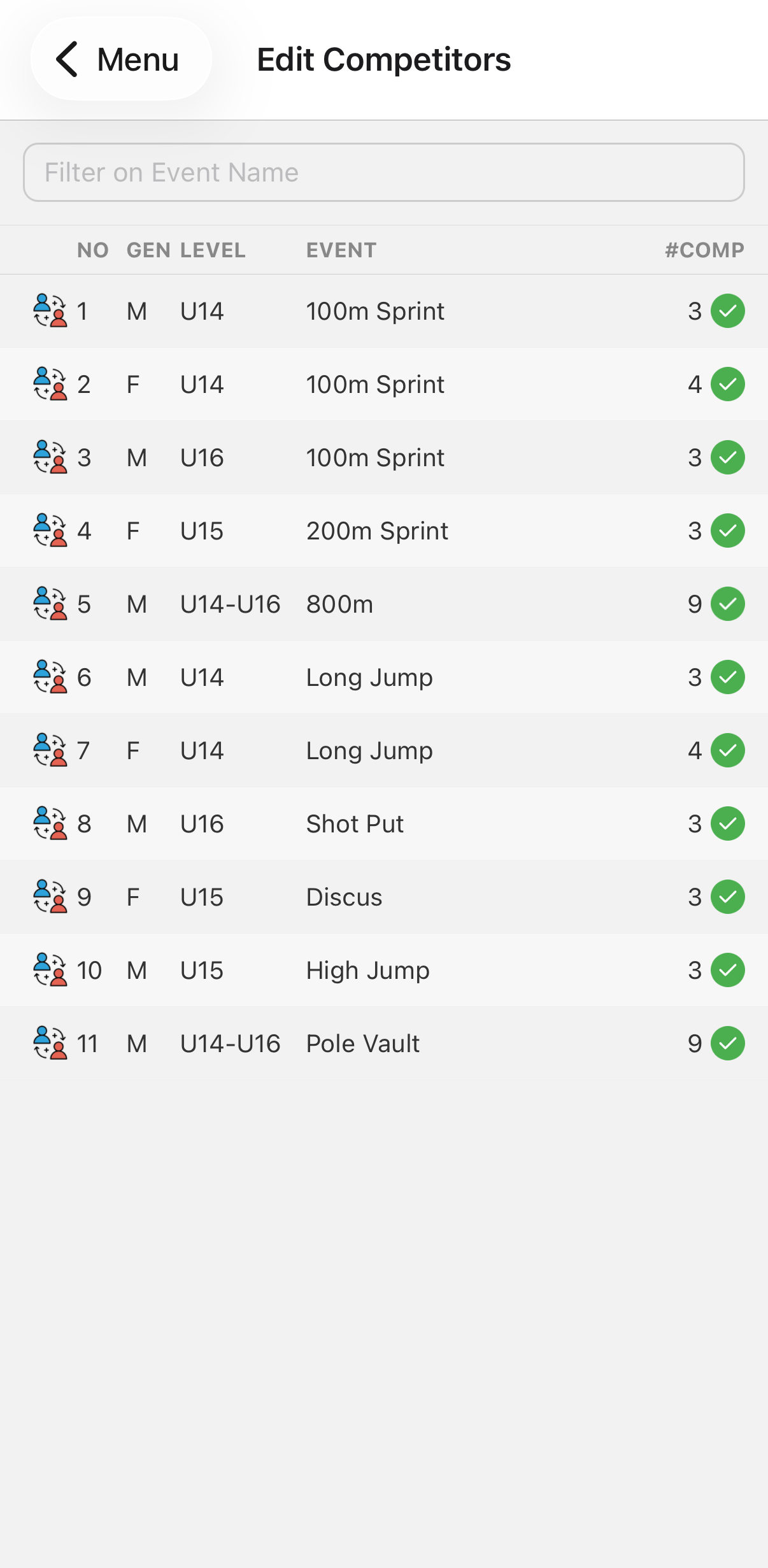
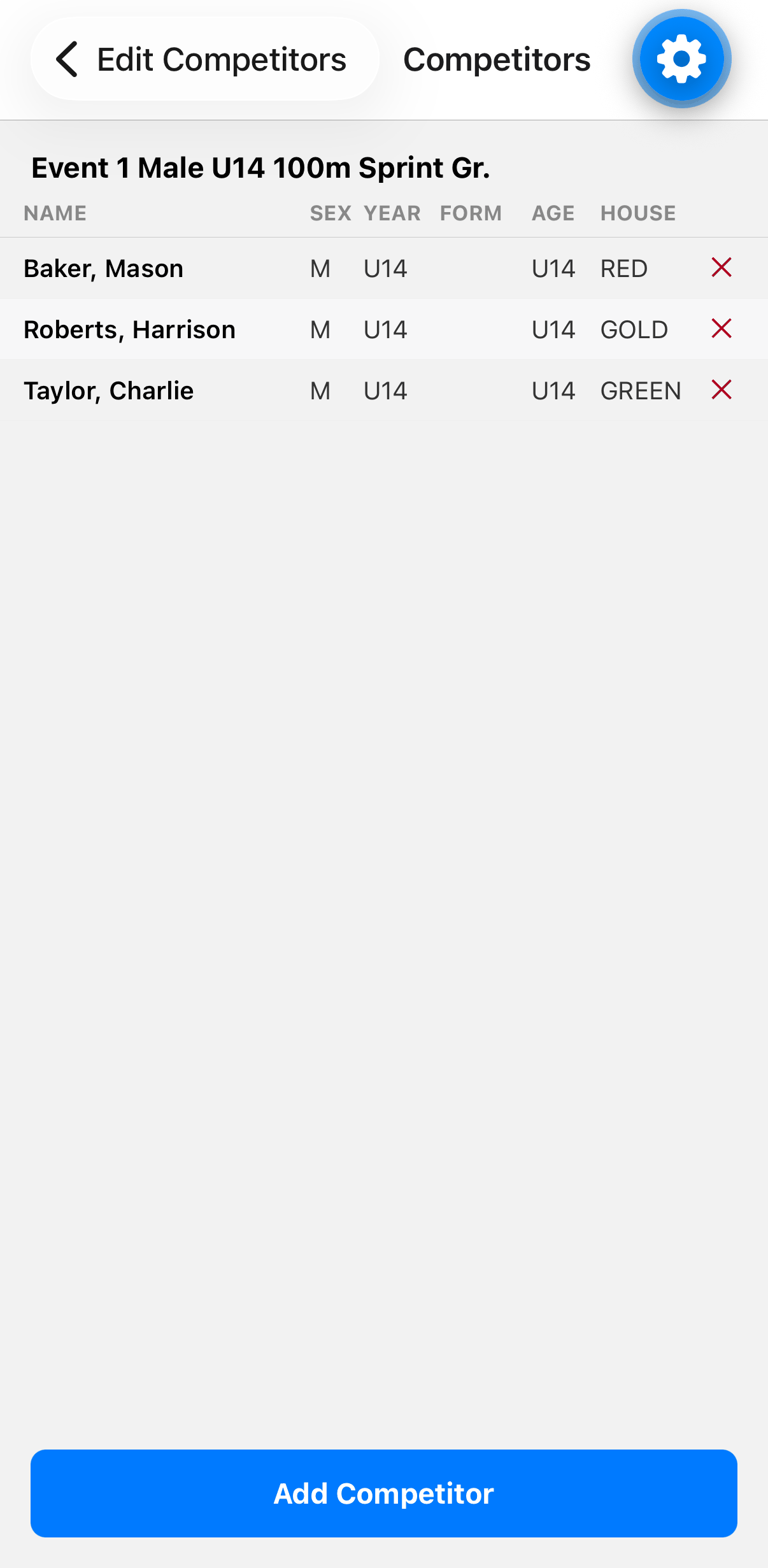
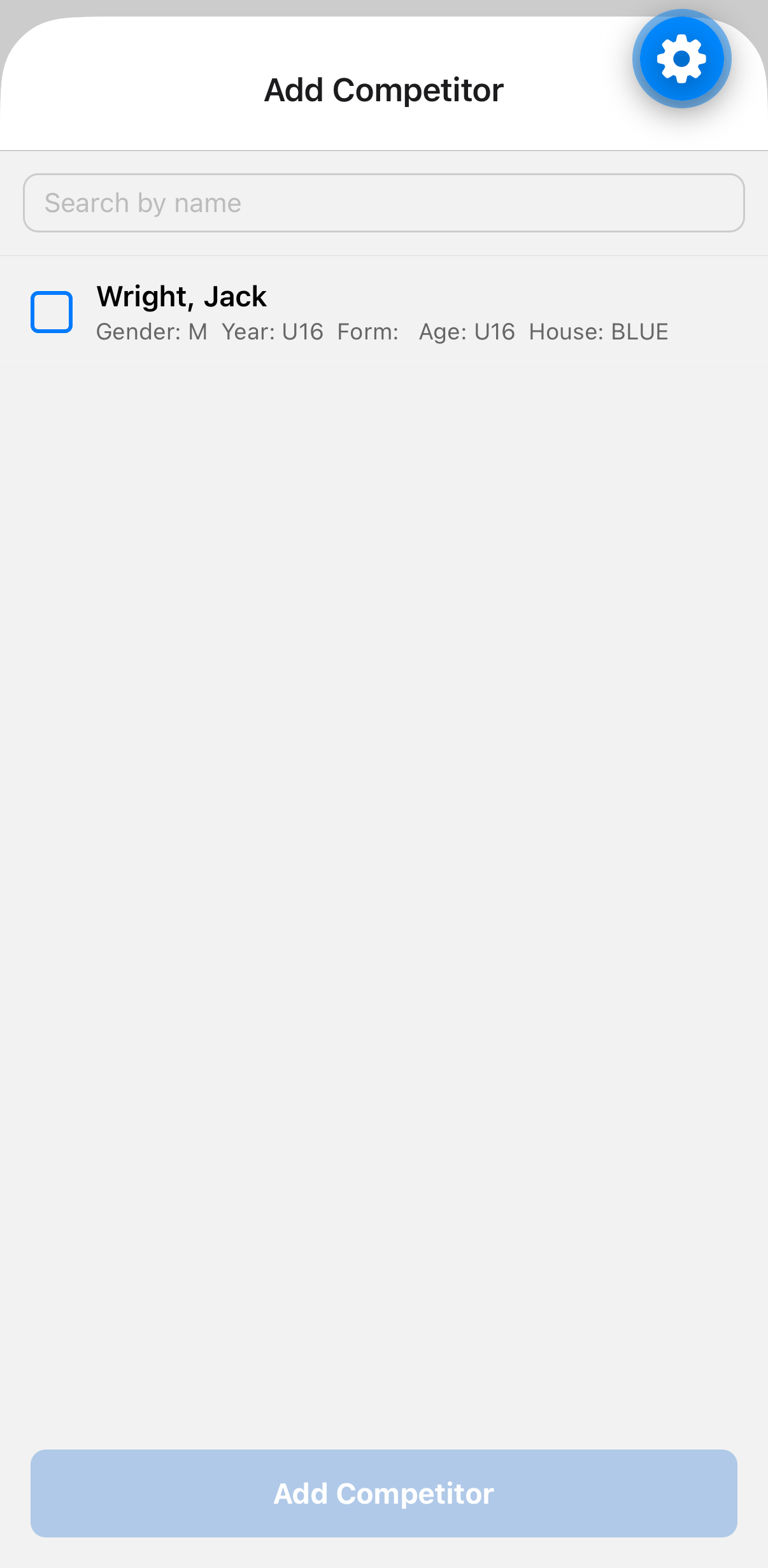
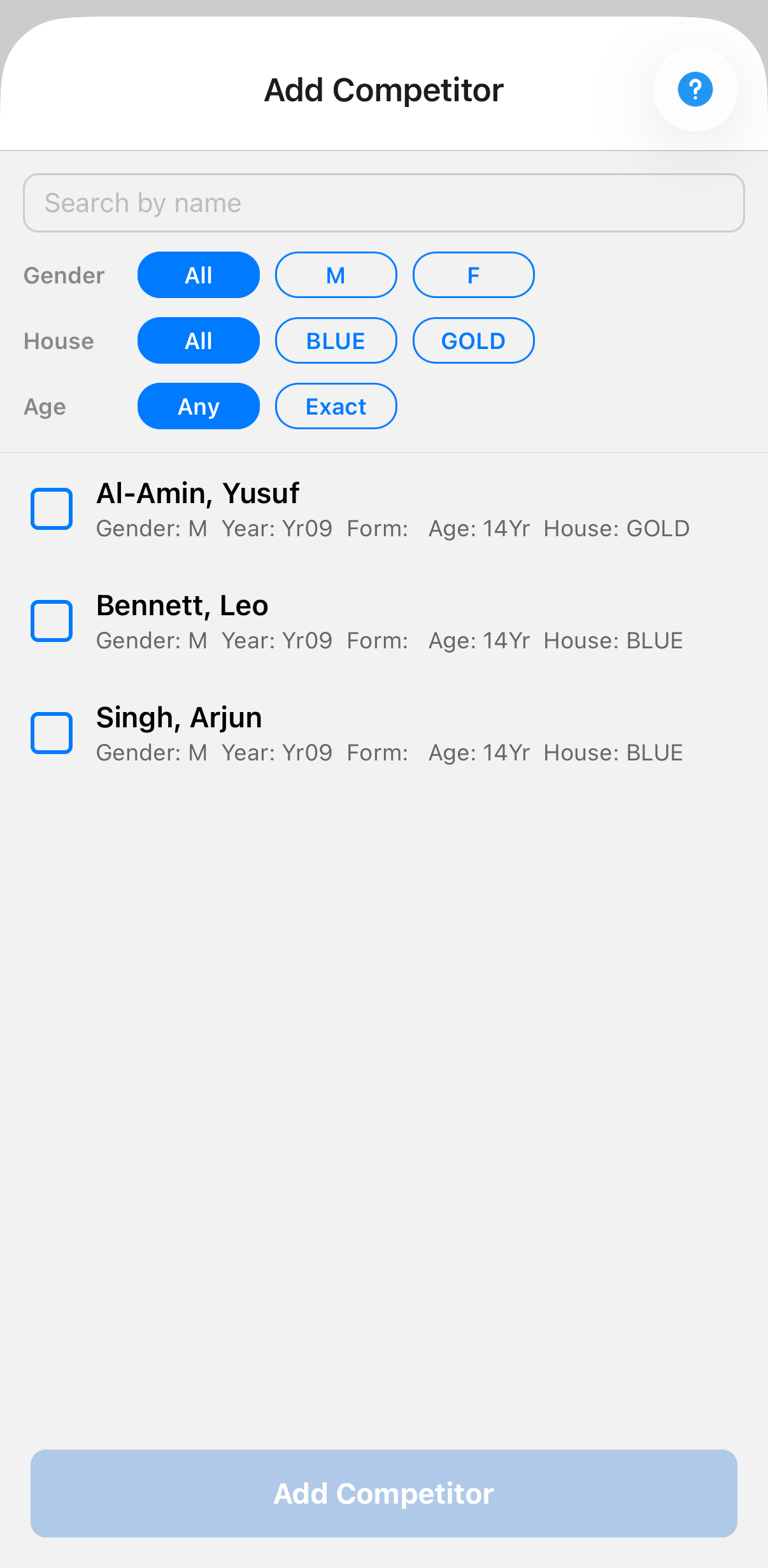
If you would rather work from a student than an event, tap Events to Competitor. Tap a student to see a checklist of every event they are eligible for, with their current events already ticked - tick or untick and tap Save to change them all at once. Alternatively tap Add to events next to a student and type event numbers separated by spaces, such as 1 5 12. Numbers that do not match an eligible event are ignored.
Entering results
|
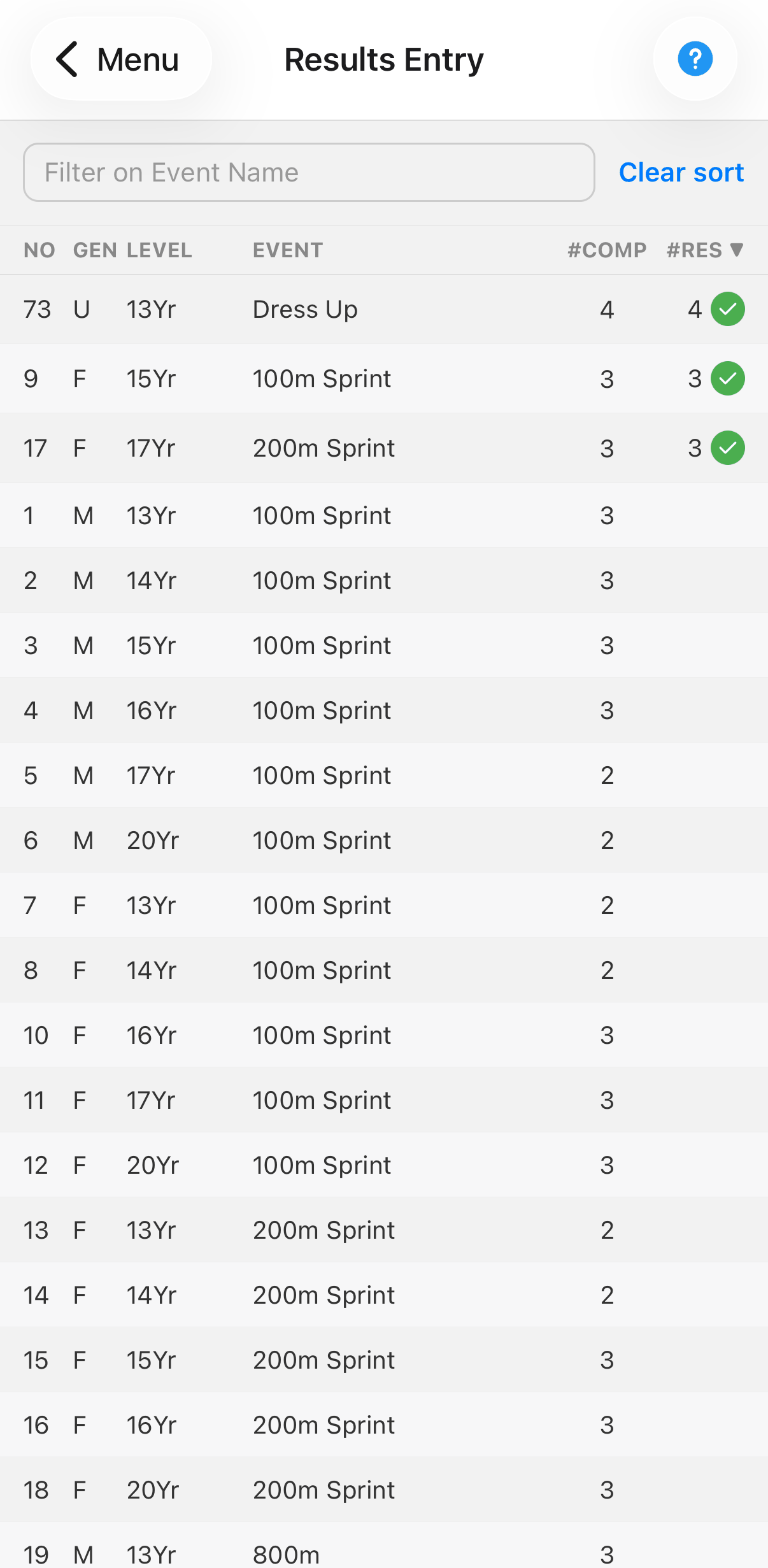
Results Entry lists the events. #COMP is how many competitors are entered and #RES how many results are recorded. A green tick marks events that are finished. For High Jump and Pole Vault, #RES means the results have been processed, not merely that attempts have been entered. |
|
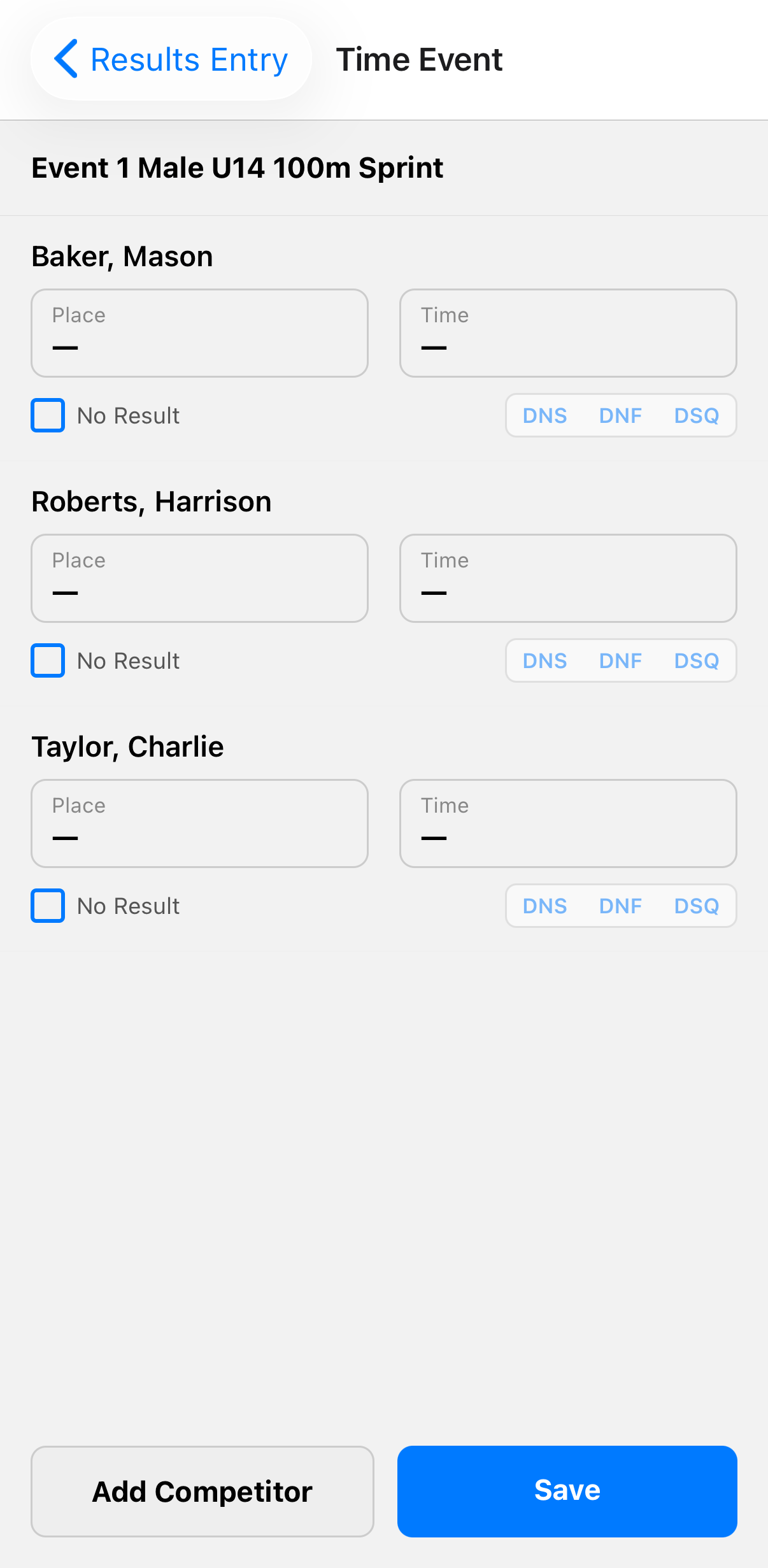
Timed events such as sprints open the Time Entry screen. Enter each competitor's place and time, then tap Save. |
|
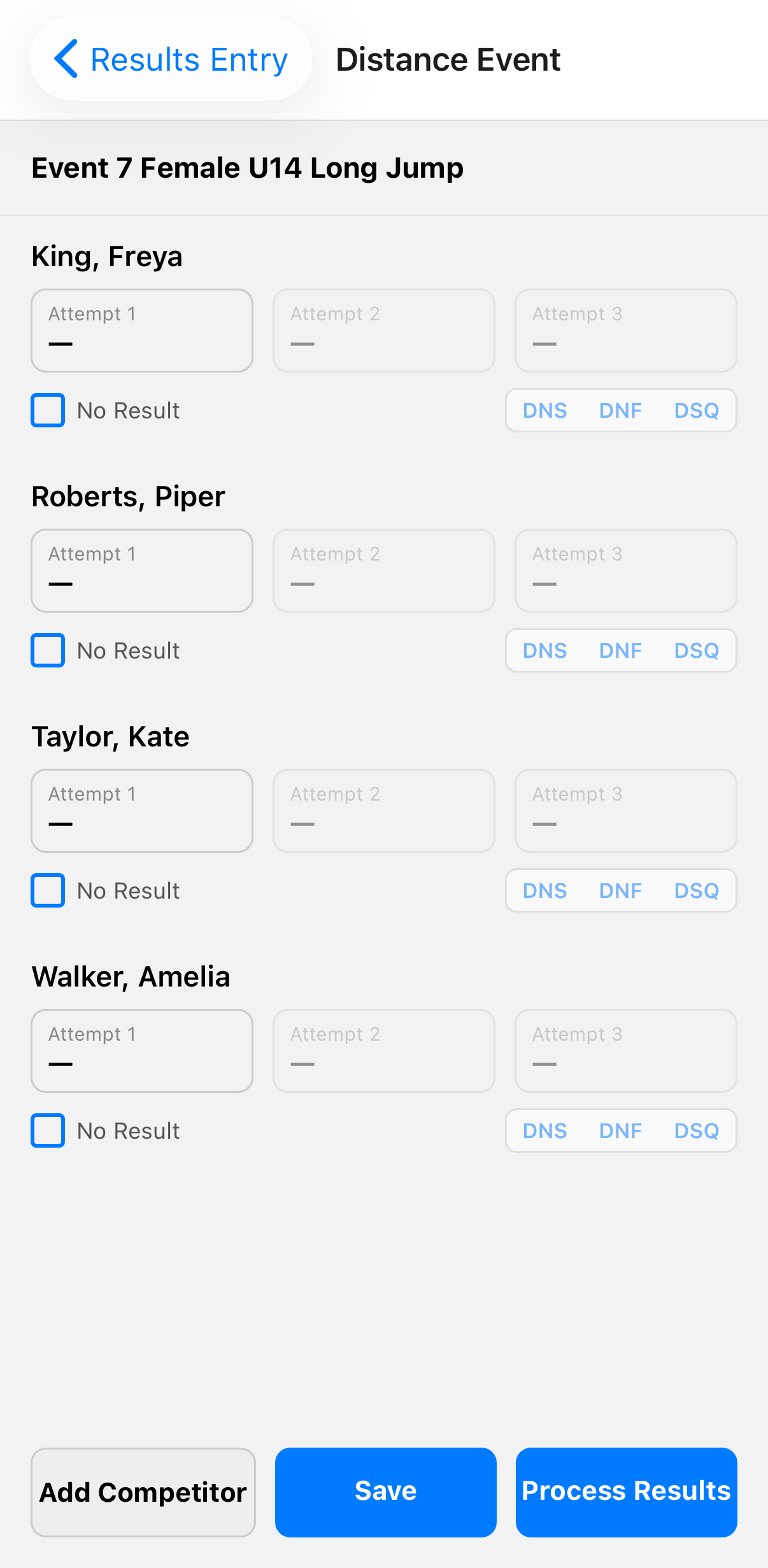
Distance events such as Long Jump and Shot Put allow up to three attempts per competitor. When every competitor has attempts entered, tap Commit Results to work out the final placings. |
|
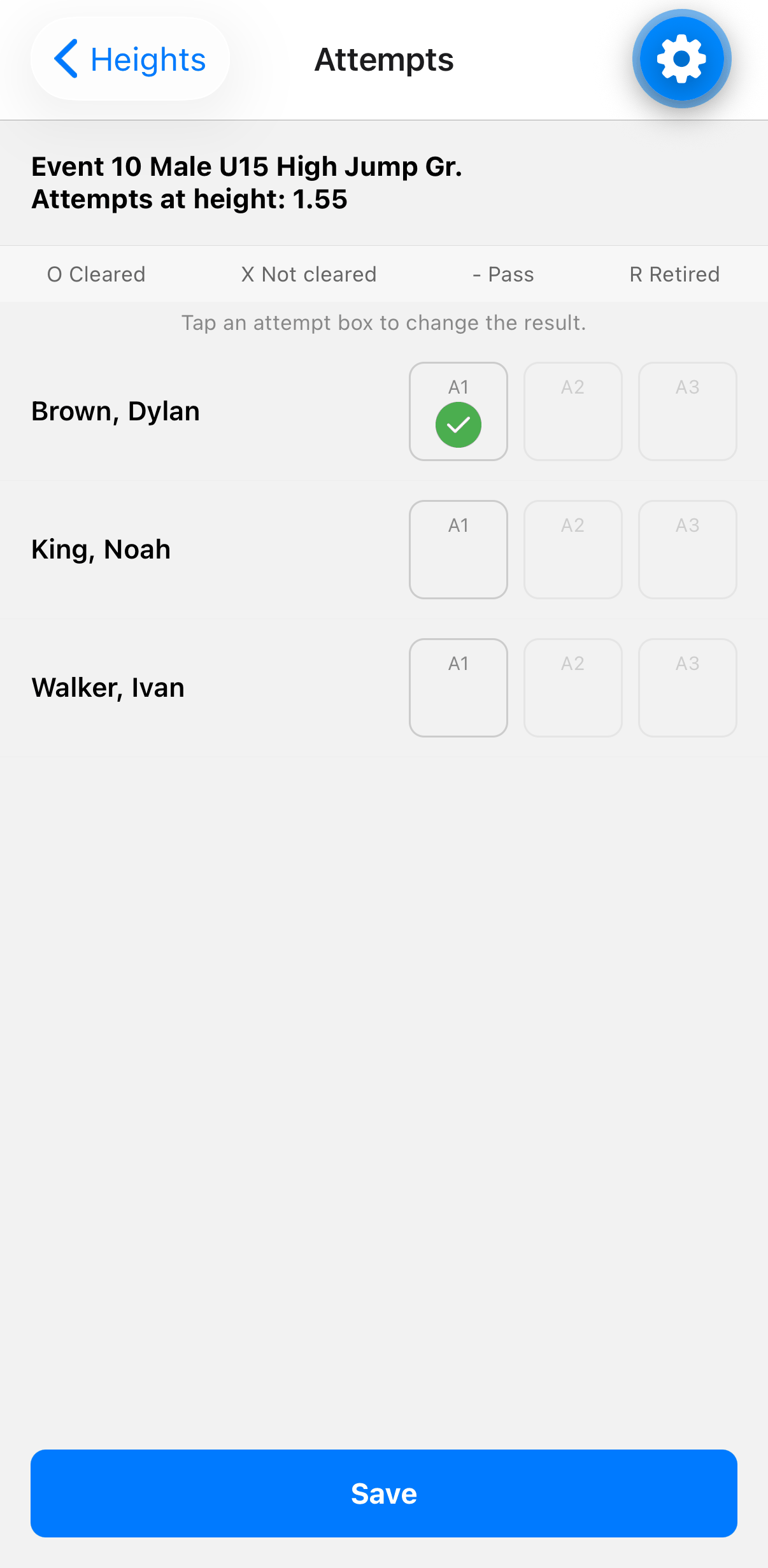
High Jump and Pole Vault record each attempt at each height as cleared, not cleared, passed or retired. Tap Commit Results to work out the final placings. |
|
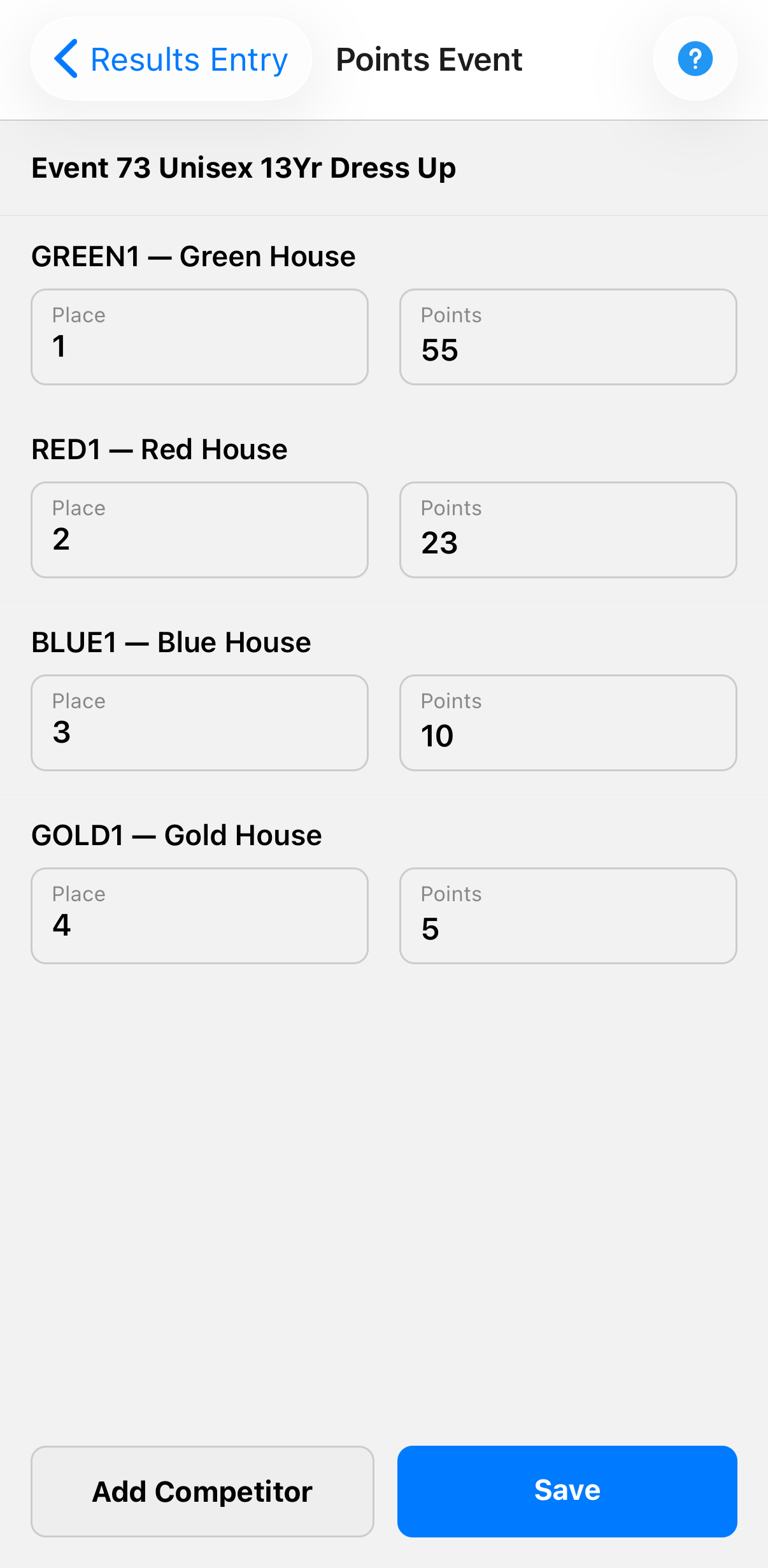
Points events such as Dress Up take a points total for each competitor or team. Places are worked out automatically from the points, highest first, so there is no place to type in yourself. Equal points share a place, and clearing a points value clears that row's place again. |
Competitors who did not compete
To record a competitor as DNS (did not start), DNF (did not finish) or DSQ (disqualified), tick No Result on their row and choose which applies. This works the same way in timed, distance and high jump events.
Their time or distance is cleared and their place shows as a dash rather than a number. They are also left out of the placings, so a disqualified athlete cannot take a placing off anyone - the competitors who did compete are still placed 1st, 2nd, 3rd and so on with no gaps. The result is still uploaded, and SportsTrak 3000 on the PC records it as a non-result rather than a finishing position.
Current Scores
Tap Current Scores to see each house or team's current total, split into Male and Female scores. These are worked out on the server as your PC processes the results, so a team with no score yet shows a dash rather than zero.
This screen always fetches the latest figures rather than using downloaded data, so it is up to date every time it is opened. The Scores downloaded line shows when that last happened, and Refresh checks again without leaving the screen.
Uploading
|
Tap Data Management on the menu, then Go to Upload Data. |
|
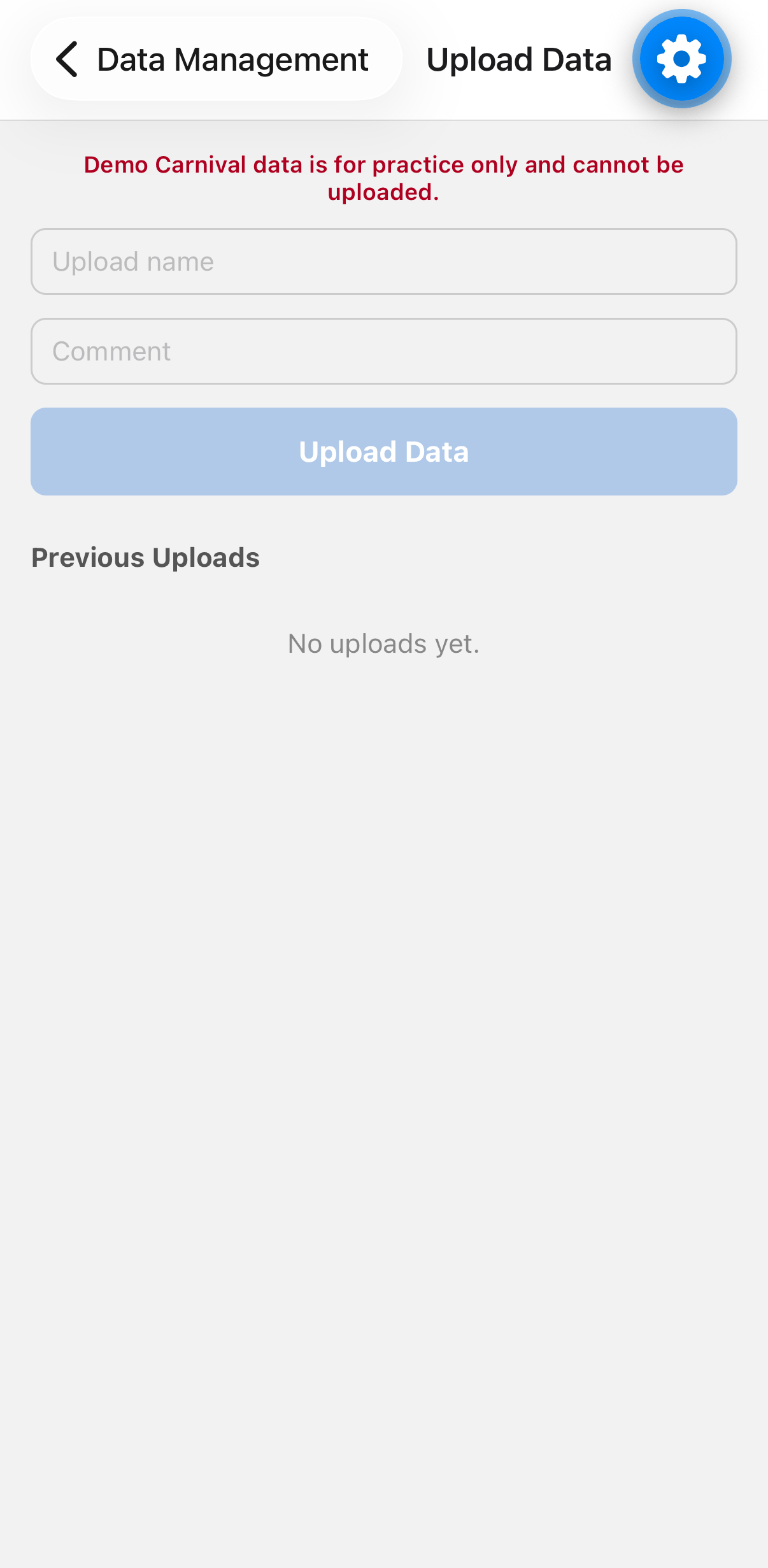
Enter an upload name and an optional comment, then tap Upload Data. Only results with a time, distance or status are uploaded - rows opened but never filled in are not sent. You then choose which events to include. Events not uploaded before are already ticked; anything sent in an earlier upload is tagged UPLOADED and left unticked, so by default you only send what is new. Re-sending an event whose results have since changed is perfectly acceptable. A record of every upload appears under Previous Uploads. |
A second card, Upload Event Selections, sends who is entered in which events rather than results. It is useful when competitors have been added or removed on the device rather than on the PC, and it works the same way.
Only one of the two upload types is accepted at a time, and which one is set on your PC. If a card's button is greyed out with an explanation underneath, that upload type is not currently being accepted for this carnival. See Setting and getting on-line data.
Removing carnival data
On the Data Management screen, tap Remove Data to erase the downloaded carnival from the device. Do this once your results have been uploaded and you are ready to connect to a different carnival.