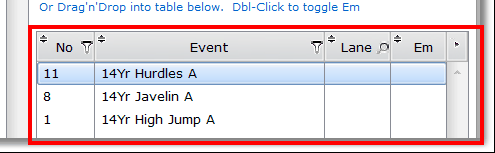
Rather than entering pre-students into events via SportsTrak's windows under the Program of Events menu, some users prefer to import directly from a data file.
These Export/Import features enable this.
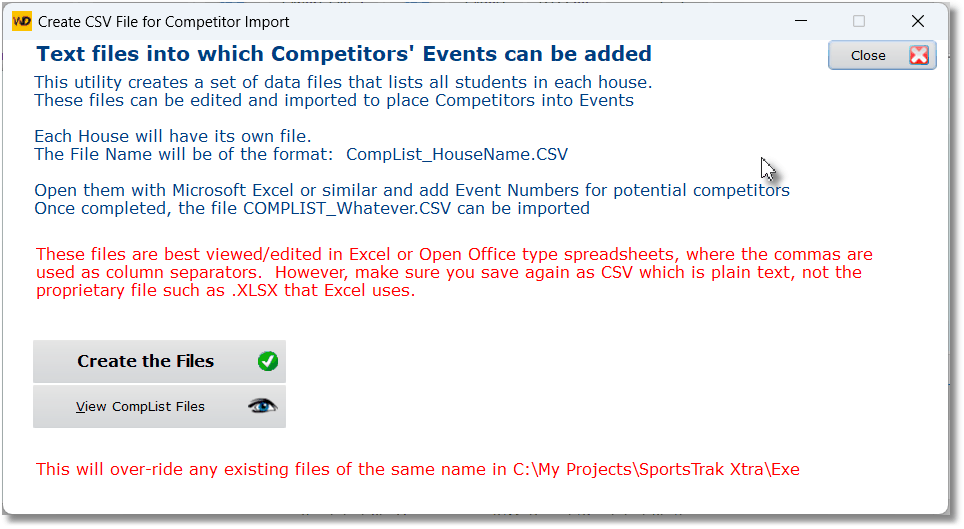
This option produces a set of CSV files, one for each house and the window below describes the process pretty well.
Basically you get a separate file for each house, that can be edited for re-import.
From the Competitors button...
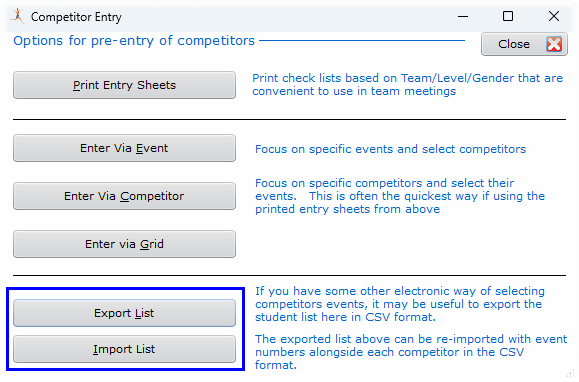
Buttons to export and import competitors
Firstly, export the student lists to CSV
Separate house list CSV files are created for each house/team with the Team Name as part of the file name.
After creating the files, they can be opened in Excel or similar, looking like the screen shot below.
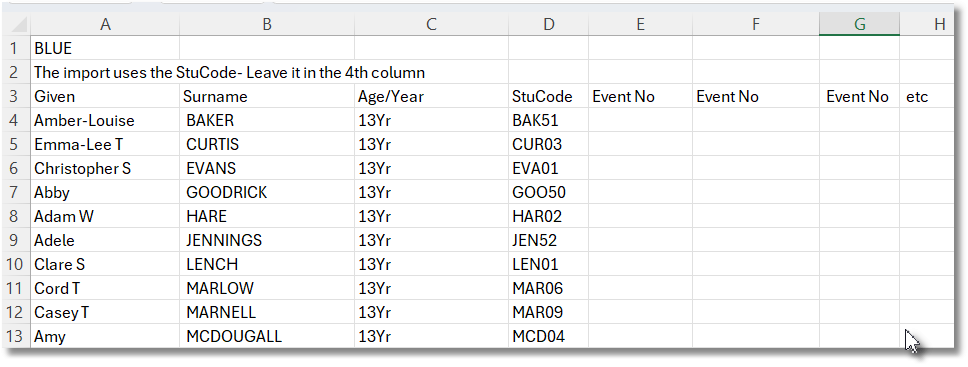
If Excel comes up with the message shown below, choose Don't Convert, otherwise some student codes might get turned into dates as shown.
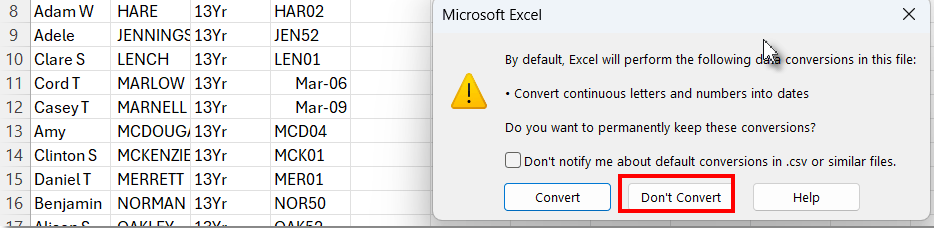
Don't Convert keeps things as they should be...

Add event numbers to students in the columns following the student code
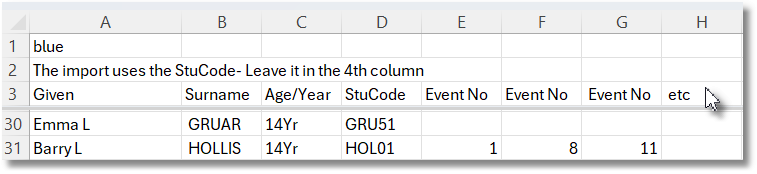
Save the updated file in CSV format
Importing the Students' events
You may import students' events from the files created above. Those files can be in the format shown at left , which is the format the above export uses.
However, it maybe that you have the student codes from another source. In this case your data may look like the right hand side format. Either way works as long as event numbers follow student code.
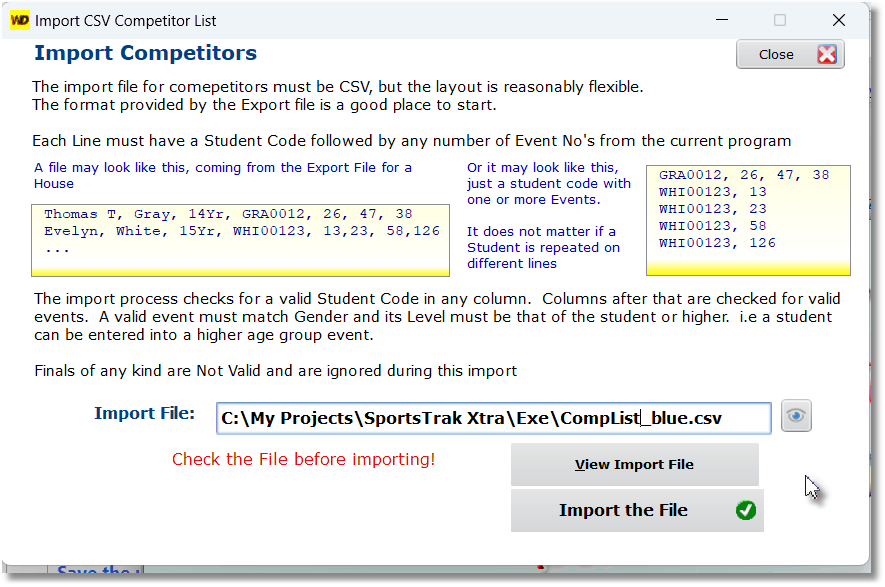
After clicking the Import file, I get a response message. In my sample data I only had 3 events for a particular student.

Checking in the Events to Student window, I can see the events have imported correctly.