Click the Program Button
A straightforward program of events looks like the screen shot below. It can be sorted or searched on any heading with a magnifying glass.
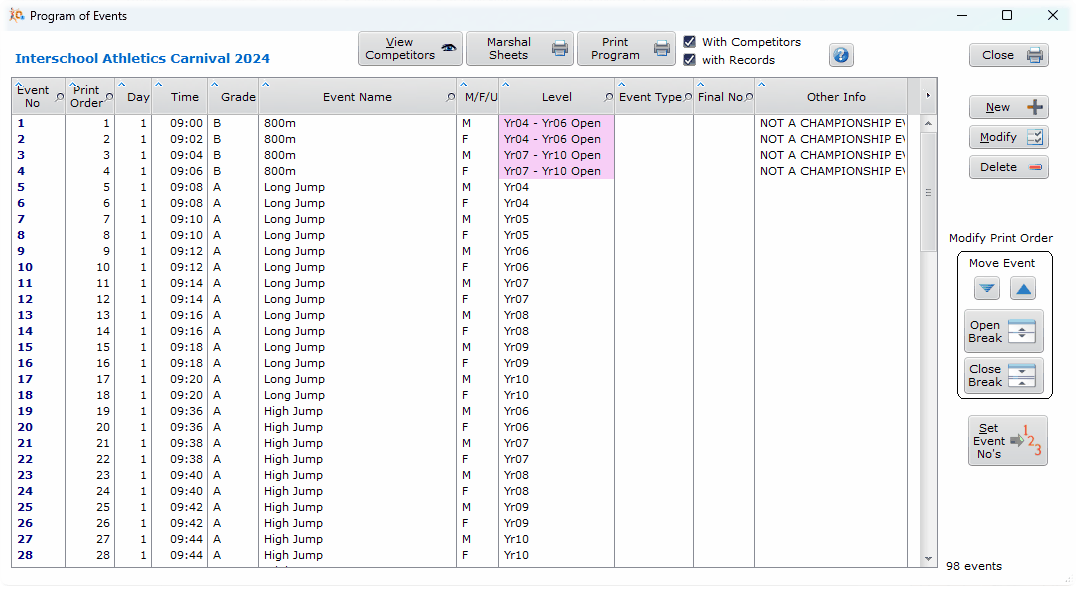
The main Program Window
The program can include non-event organisational information such as assembly, lunch time, presentations.
Event No and Print Order
Event No looks numeric, but it is actually alphanumeric, so you can have events numbers 3A, 3B etc which are not purely numeric.
For this reason we include a Print Order, sometimes referred to as Sequence No in this document. Print Order is the order in which events print; Event No is not the print order.
The Move Event buttons will push an event up or down the program
If you require an event within the current print sequence you can use the Open Break button to create a gap in the sequence, into which an event can be inserted. Highlight the event above where you want the break. You may have to enter a temporary event number.
Set Event No's button sets all Event No's to be equal to the Print Order, and this can tidy up the program at any time.
Event Type
Events can be one of several type. Ordinary (as above), Heat, Quarter Final, Semi Final, or Final. Heats and finals are discussed in their own section.
Ordinary events are simply self contained events that have no reference to any other event. Most events are Ordinary, so we don't clutter the table with that notation, but if you see Ordin anywhere, it means Ordinary event.
Grade
This refers to the grade of the Scoring System, typically A Grade, maybe B or C grade
Right-Clicking on the Menu
If you right-click on the table you get a menu that the development software puts in automatically. That is to say, we programmers have not put it in.
Some of these items can be useful, such as exporting to Word or Excel or Selecting Columns.
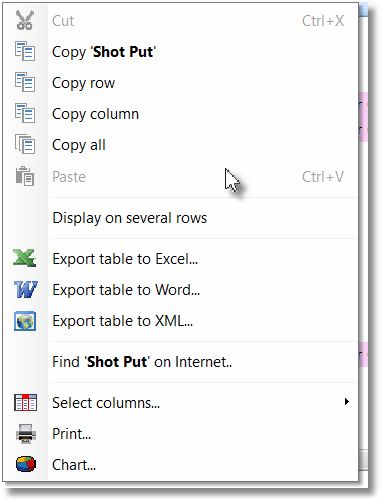
Right-Click Menu on a Table