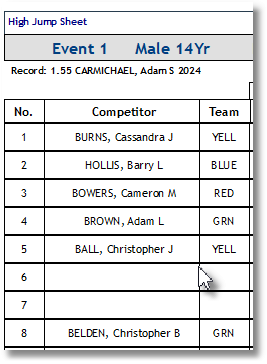
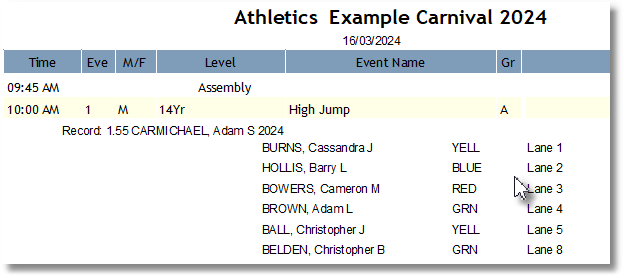
After the program is set up, you may Set Lanes for the events.
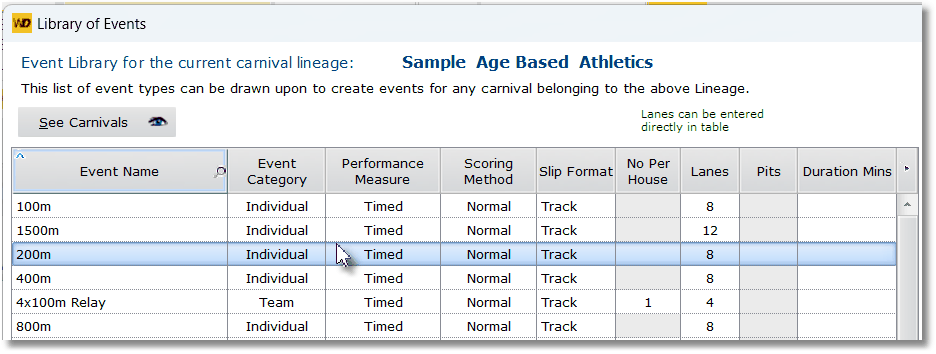
In the library of events (Carnival Setup Menu) make sure you have set the Lanes number( 3rd last column below)
For field events, this can either be ignored or regarded as the competitor order within the event.
You can directly enter this number into the table (or use the update form)

Use the Set Lanes button of the Program of Events menu
The table displays event types on the current program. The Drop Down options are House Codes to assign to each lane.
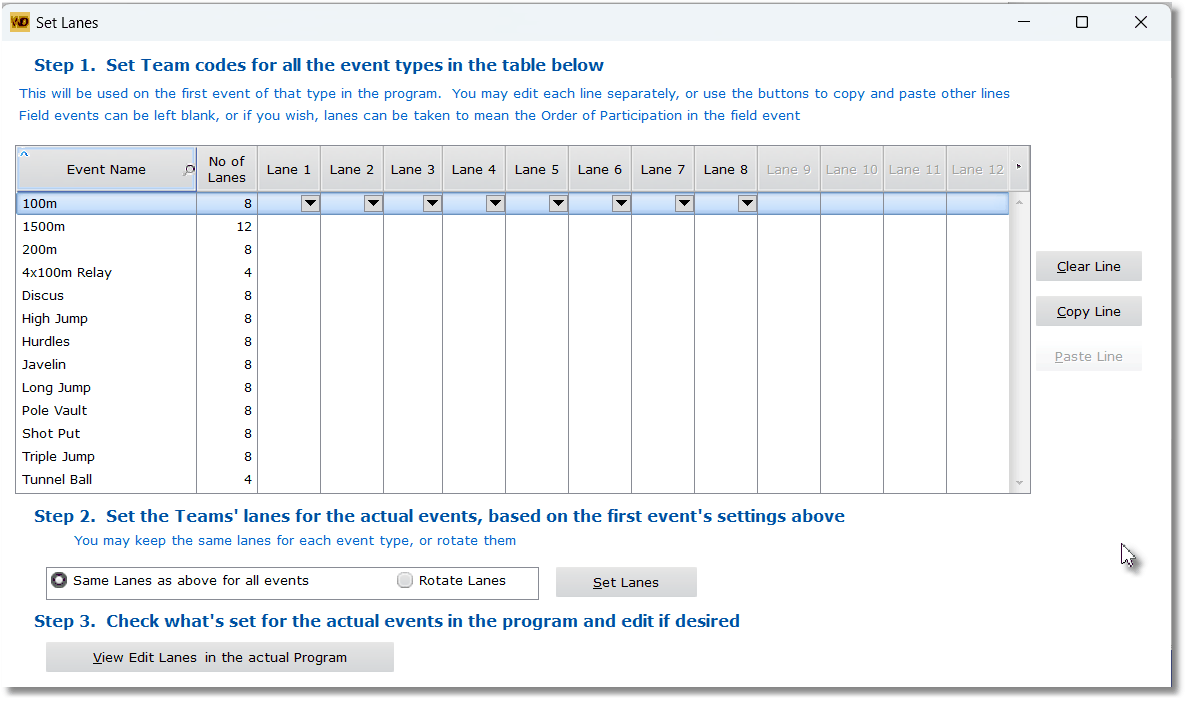
The number of lanes seen for each event is the Number of Lanes set in the Library of Events.

The house pattern is a template of lane assignment to be used for all events of that type. You may choose to keep the same pattern for all events on the program or to rotate the houses for each event.
For the subsequent listed events, you may choose to Copy the highlighted line
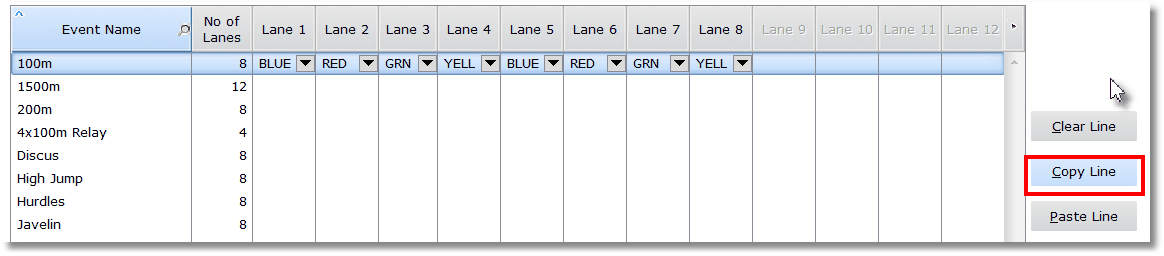
Highlight another line, then Paste.
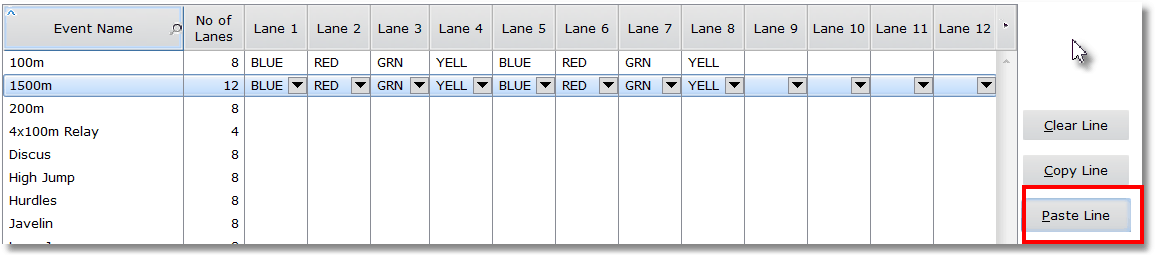
In this example I have Pasted an 8 Lane pattern on to a 12 Lane event, so I still need to put in the remaining 4.
I have then repeatedly Pasted to complete the same pattern for all events
When pasting, if the number of lanes being copied is greater than the No of Lanes displayed, the the No of Lanes displayed will be corrected and saved.
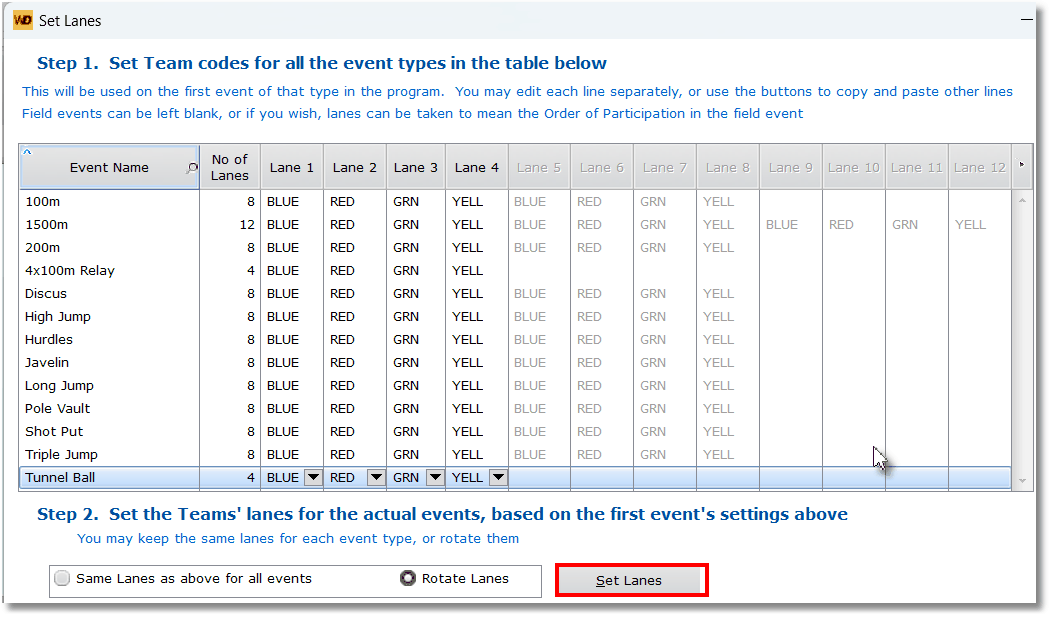
The above table is a template to be used for Set Lanes.
So, choosing to Rotate Lanes in this example, I click Set Lanes
I can then view and edit the lanes set for the actual events:

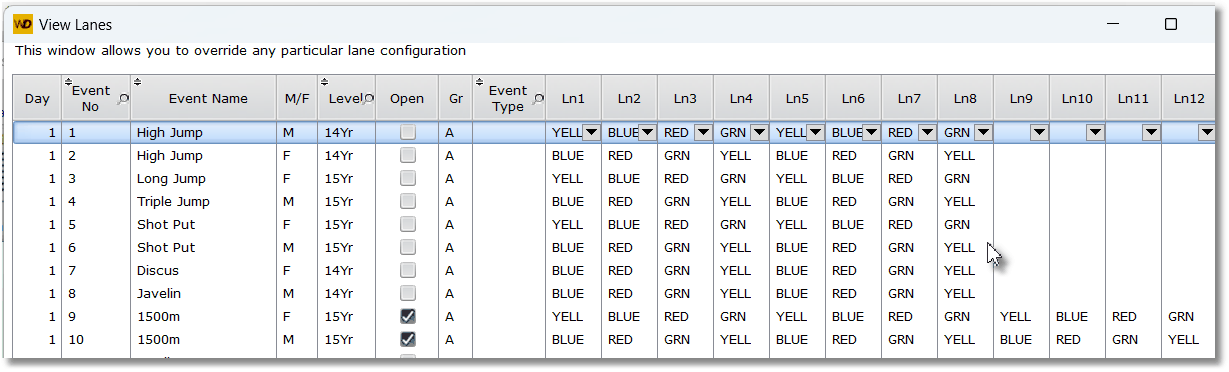
When competitors are added to these events, they are assigned to lanes based on their house.
(I know the example shows a field event, but you can regard the Lane Order as the Jump order, or simply do not add lanes for field events)
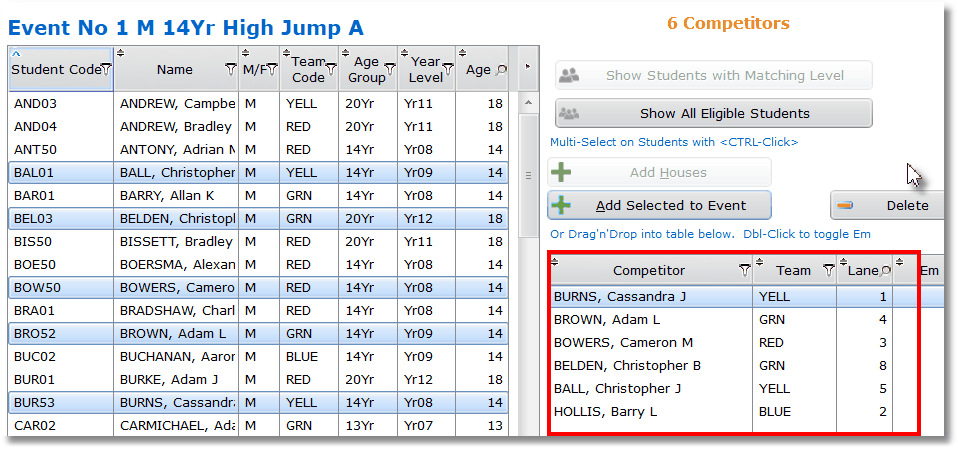
These lanes appear on the Marshal Sheet and the Program of Events